Official API (CALLING)
Context
WhatsApp Business Calling adds the VoIP communication channel in addition to text messaging between consumers and businesses. Consumers use the WhatsApp application as in Consumer-to-Consumer Calls, while the business interacts with the WhatsApp API through the Graph API for signaling and initial call connection.
Value proposition
WhatsApp Business Calling enables businesses to initiate and receive calls with WhatsApp users using Voice over Internet Protocol (VoIP), with global reach.
| Value | Description |
|---|---|
| Unified communication | Message and call from one number, worldwide. |
| Branding and trust | Built-in brand identity, verification, and global availability. |
| Customer relationship | A single point of contact for inbound and outbound communication. |
| Sales and support | Unify marketing and support channels in one place. |
| Rich features | Video*, screen share*, and call customization. |
| Call deflection | Move voice calls to WhatsApp chat. |
| Customer convenience | Free for your customers and available globally. |
| Record keeping | One thread with a centralized, long-term record. |
Note: * Feature planned or in development. Reach out to your Meta or partner for more details.
Architecture
Possible signaling and media configurations
| Default configuration | SIP with WebRTC | SIP with SDES media | |
|---|---|---|---|
| Signaling protocol | Graph APIs + Webhooks | SIP (requires explicit enablement) | SIP (requires explicit enablement) |
| Signaling transport | HTTPS | TLS | TLS |
| Media protocol | WebRTC (ICE + DTLS + SRTP) | WebRTC (ICE + DTLS + SRTP) | SDES SRTP (requires explicit enablement) |
| Audio codec | OPUS | OPUS | OPUS |
Notes:
- You can also use SDES instead of ICE+DTLS with Graph API + Webhook signaling.
- Additional audio codecs supported:
PCMA,PCMU.
Get started
Prerequisites
- Your business number must be in use with Cloud API (not the WhatsApp Business app).
- Subscribe your app to the
callswebhook field (unless you plan to use SIP). - The same app must be subscribed to the WhatsApp Business account of your business phone number.
- The app must have messaging permissions (
whatsapp_business_messaging) for the business number. - The business must have a daily messaging limit of at least 2,000 unique recipients.
- Enable Calling features on your business phone number.
Configure calling features
The API offers features that affect when and how calling features appear to users on your WhatsApp profile:
- Inbound call control: allows you to prevent users from placing calls from your business profile.
- Business call hours: lets you avoid missed calls and direct users to message when your call center is closed.
- Callback requests: offer users the option to request a callback when you don’t pick up a call or if your call center is closed.
Make and receive calls
Cloud API Calling offers two call initiation paths:
- User-initiated calls: calls made from a WhatsApp user to your business.
- Business-initiated calls: calls made from your business to a WhatsApp user.
Testing and sandbox accounts
Warning: Sandbox accounts are only available to Tech Partners.
Overview
A WhatsApp sandbox account is a mock WhatsApp Business account that you can use to test your Calling API integration. Use a calling sandbox account to test the following features:
- Initiate and receive calls using the Calling API.
- Validate calling webhook events.
- Simulate onboarding flows without creating real business assets.
Sandbox account calling limits
The following table outlines the calling limits for sandbox accounts. These limits are subject to change.
| Limit | Description | Production number limit | Public test number limit |
|---|---|---|---|
| Connected call limit | Number of calls a business can make on approved permissions. | 100 connected calls per 24 hrs | No change |
| Call Permission Request message limits | Limits the number of call permission request messages that can be sent to the same consumer | 1 request per day 2 requests per week | 25 requests per day 100 requests per week |
| Unanswered call limits | When the user rejects or misses a business-initiated call. | Nudge on 2 consecutive unanswered calls Revoke permission on 4 consecutive unanswered calls | Nudge on 5 consecutive unanswered calls Revoke on 10 consecutive unanswered calls |
| Temporary call duration | Duration a business can call the user after the user approves permission. | 7 days | No change |
Set up a sandbox account
Step 1. Claim a sandbox account
Follow the instructions in Embedded Signup Overview — Claiming sandbox accounts to claim your sandbox account.
Step 2. Obtain credentials and identifiers for your sandbox account
- In the App Dashboard, navigate to your app, then select WhatsApp > Embedded Signup Builder in the sidebar.
- Note: Keep this tab open and available as you will use it multiple times throughout this process.
- Ensure that the Features dropdown is empty, then click Login with Facebook.
- A popup with the Embedded Signup experience will show. Under Business portfolio select Sandbox Business.
- Fill in the rest of the required information, then click Next.
- On the next screen, in the Create or Select a WhatsApp Business Profile dropdown, select Test Number.
- Once the login flow is complete, in the Exchange Token section, click Get Token.
- Note: Retain this token for future sandbox account API use.
- In the Fetch Shared WhatsApp Business account section, click Fetch WABA details.
- Under WhatsApp Business account field, copy the Value for the
idrow.- Note: Retain this ID since it is the WhatsApp Business account ID for the sandbox WABA.
- In the Fetch phone numbers section, click Fetch phone numbers.
- Under ID, copy the value.
- Note: Retain this ID since it is the phone number ID for your sandbox account test phone number.
Step 3. Register your test phone number and subscribe to your WABA
Prerequisites
Ensure that you have the following information from the previous steps:
- Your sandbox account token string
- Your sandbox account WABA ID
- Your test phone number ID
To complete these next steps, you will use the Graph API Explorer tool.
- Note: Keep this window open as you will use the configuration you created again in later steps in this guide.
- Navigate to the Graph API Explorer tool.
- Ensure you are on the latest version of the API.
- Click Generate Access Token and follow the prompts.
- Under Permissions, add the
whatsapp_business_managementandwhatsapp_business_messagingpermissions. - In the endpoint builder, enter
/<YOUR_SANDBOX_WABA_ID>/subscribed_apps, then click Submit.
{
  "success": true
}- Next, register your test phone number by entering
/<YOUR_SANDBOX_TEST_PHONE_NUMBER_ID>/registerin the endpoint builder. - In the left sidebar, click JSON, then enter the following JSON body, then click Submit:
{
  "messaging_product": "whatsapp",
  "pin": "123456"
}- You should receive a standard
successresponse:
{
  "success": true
}
Step 4. Test your messaging functionality
- In the Graph API Explorer tool, enter
/<YOUR_SANDBOX_TEST_PHONE_NUMBER_ID>/messagesin the endpoint builder. - In the left sidebar, click JSON, then enter the following JSON body, then click Submit:
{
  "messaging_product": "whatsapp",
  "to": "YOUR_NUMBER", // Replace this value with phone number of your device.
  "recipient": "US.13491208655302741918",
  "type": "template",
  "template": {
    "name": "hello_world",
    "language": { "code": "en_US" }
  }
}
Note: Usernames and business-scoped user IDs: The recipient field lets you identify the WhatsApp user by their BSUID instead of, or in addition to, their phone number in to. For details, see Business-scoped user IDs.
- You will receive a response with a
"message_status": "accepted"value, and you should receive a text message on your device.
Step 5. Configure webhooks and permissions
- Navigate to the App Dashboard.
- Click the app you are using with WhatsApp.
- Select Use cases (pencil icon) from the sidebar.
- Under Connect with customers through WhatsApp, click Customize.
- In the left sidebar, click Configuration.
- Under Callback URL, add the callback URL for your webhook server.
- If you do not have a webhook server, you can follow our instructions to create a test webhook server.
- Under Verify token, add an arbitrary verification string.
- Click Verify and save.
- On the next page, in the Select product dropdown, click WhatsApp Business Account.
- Under Webhook fields, in the calls row, click the toggle button to subscribe to the
callswebhook field.
Finish: Enable calling features on your test phone number
- In the Graph API Explorer tool, enter
/<YOUR_SANDBOX_TEST_PHONE_NUMBER_ID>/settingsin the endpoint builder. - In the left sidebar, click JSON, then enter the following JSON body, then click Submit:
{
  "calling": {
    "status": "ENABLED",
    "call_icon_visibility": "DEFAULT",
    "callback_permission_status": "ENABLED"
  }
}- You should receive a standard
successresponse:
{
  "success": true
}- Finally, under Access Token, copy the access token down for future use.
- Note: Retain this access token as you will use it to make API calls for testing your Calling API integration.
Test business-initiated calling
Before you can test business-initiated calls (BIC), you must provide user calling permissions to your sandbox account.
You can do this on the client device you are using for testing:
- On your client device, open WhatsApp.
- Navigate to the message thread you have with your sandbox business phone number.
- At the top of the screen, tap the sandbox business phone number.
- Scroll down and tap Business Calling Permission.
- Tap Allow calls.
You can now use your Calling API integration to call the client device and test your integration.
Learn more about business-initiated calls.
Test user-initiated calling
You can test user-initiated calls (UIC) on the client device you are using for testing:
- On your client device, open WhatsApp.
- Navigate to the message thread you have with your sandbox business phone number.
- Tap the phone icon at the top of the screen to call the sandbox business phone number.
- Confirm a successful call connection.
Learn more about user-initiated calls.
Availability
User-initiated calling
Available in every location Cloud API is available.
Business-initiated calling
Available in every location Cloud API is available, except the following countries:
- United States
- Canada
- Egypt
- Vietnam
- Nigeria
Note: the business phone number’s country code must be in this supported list. The consumer phone number can be from any country where Cloud API is available.
Changelog
| Date | Title | Description |
|---|---|---|
| March 23, 2026 | G.711 (PCMA, PCMU) audio codec support | New section for the G.711 (PCMA, PCMU) audio codec configuration in call settings. |
| January 27, 2026 | Calling restrictions based on user feedback | New calling restrictions based on user feedback are now in effect. |
| December 19, 2025 | Business-initiated call limit update | The number of business-initiated calls per user increased to 100 per day (from 10 per day). |
| December 10, 2025 | Introduced restrict_to_user_countries for call icon | You can now control in which countries the call icon should be visible. |
| October 13, 2025 | Business-initiated call limit update | The number of business-initiated calls per user increased to 10 per day (from 5 per day). Added the “Testing and Sandbox” section. |
| September 29, 2025 | Asterisk integration guide | New guide to integrate with Asterisk. |
| September 24, 2025 | Context propagation from call buttons and deep links | Specify an opaque string in call buttons or deep links to track the origin of user-initiated calls. |
| September 8, 2025 | Health Status API calling update | Health Status API now includes the can_receive_call_sip field to self-diagnose SIP setup issues. |
| September 5, 2025 | Low call pickup calling restrictions | Low call pickup rate restrictions are now in effect. |
| July 21, 2025 | Account settings update webhooks | Get webhooks when settings are updated. |
Call settings
Use these APIs to view and manage the call configuration of your business phone numbers. By default, calls are not enabled on a business phone number.
Update settings
Updates the call settings of a phone number: enable or disable the feature, control the icon visibility, define the operating hours and the holiday overrides.
Endpoint: POST /calls/{v}/{did}/settings
Request:
curl --request POST \
  --url 'https://channels.chattigo.com/bsp-cloud-chattigo-isv/calls/v21.0/{did}/settings' \
  --header 'Authorization: Bearer <token>' \
  --header 'Content-Type: application/json' \
  --data '{
    "calling": {
      "status": "ENABLED",
      "call_icon_visibility": "DEFAULT",
      "call_icons": {
        "restrict_to_user_countries": ["US", "BR"]
      },
      "call_hours": {
        "status": "ENABLED",
        "timezone_id": "America/Manaus",
        "weekly_operating_hours": [
          {
            "day_of_week": "MONDAY",
            "open_time": "0400",
            "close_time": "1020"
          }
        ],
        "holiday_schedule": [
          {
            "date": "2026-01-01",
            "start_time": "0000",
            "end_time": "2359"
          }
        ]
      },
      "callback_permission_status": "ENABLED",
      "sip": {
        "status": "ENABLED",
        "servers": [
          {
            "hostname": "sip.example.com",
            "port": 5061,
            "request_uri_user_params": {
              "KEY1": "VALUE1"
            }
          }
        ]
      },
      "audio": {
        "additional_codecs": ["PCMA", "PCMU"]
      },
      "voicemail": {
        "status": "ENABLED",
        "triggers": ["REJECT", "TIMEOUT"],
        "audio": {
          "default": {
            "announcement_media_id": 938884519013664,
            "timeout_seconds": 20
          }
        }
      }
    }
  }'
Response (200):
{
  "success": true
}
calling node parameters:
| Field | Required | Description |
|---|---|---|
status | Yes | ENABLED or DISABLED. Indicates whether calls are enabled for the number. |
call_icon_visibility | No | DEFAULT or DISABLE_ALL. Controls the call icon visibility in consumer apps. Disabling visibility does not prevent unsolicited calls to your business. |
call_icons | No | Restricts the countries where the call icon is shown. |
call_icons.restrict_to_user_countries | No | List of two-letter country codes (e.g. ["US", "BR"]). Empty = no restriction. Applies to all users with a phone number registered in those countries, regardless of physical location. |
call_hours | No | Call hours applied to all inbound calls. Replaces the previous configuration entirely. |
call_hours.status | Yes | ENABLED or DISABLED. When disabled, the business is available 24/7. |
call_hours.timezone_id | Yes | Business timezone. See the supported zones. |
call_hours.weekly_operating_hours | Yes | Operating hours per day (day_of_week, open_time, close_time in 24h format, e.g. "0000" = 12 AM). Max 2 entries per day, no overlapping hours. |
call_hours.holiday_schedule | No | Overrides to the weekly schedule (date in YYYY-MM-DD, start_time, end_time). Up to 20 entries. If not passed, the existing holiday schedule is deleted. |
callback_permission_status | No | ENABLED, DISABLED or NOT_SET. Lets WhatsApp request a call permission after a user-initiated call (connected or missed). |
ip_addresses | No | List of IP addresses of the business SIP or media servers for allowlisting on Meta’s firewall. |
srtp_key_exchange_protocol | No | DTLS (default) or SDES. Configures the SRTP key exchange protocol. |
sip | No | Configures SIP signaling. When SIP is enabled, you cannot use the call endpoints or receive call webhooks. |
audio | No | Configures additional audio codecs. Opus is the default and always present. |
audio.additional_codecs | No | PCMA (G.711 A-law) and/or PCMU (G.711 µ-law). Opus cannot be removed. |
voicemail | No | Configures voicemail collection for missed or rejected user-initiated calls. |
voicemail.status | Yes | ENABLED or DISABLED (default). Requires calling enabled on the number. |
voicemail.triggers | Depends on status | REJECT (you reject the call) and/or TIMEOUT (you do not accept/reject within timeout_seconds). At least one when enabled. |
voicemail.audio.default | Depends on status | Default audio config. announcement_media_id is a media uploaded with use_case=call_voicemail_announcement (audio/ogg, OPUS, < 60s). timeout_seconds (0-30) applies only to the TIMEOUT trigger. |
Configuration propagation note: after updating call configuration, WhatsApp users may take up to 7 days to reflect the changes. Most users refresh much sooner. You can force an immediate refresh by entering your business chat and opening the chat info page. Regardless of client behavior, the server always honors the configured settings.
Icon visibility behavior:
DEFAULT: the call icon is shown at every call entry point (chat menu and business info).
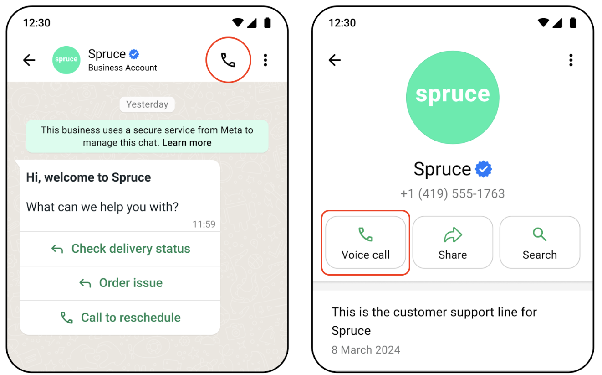
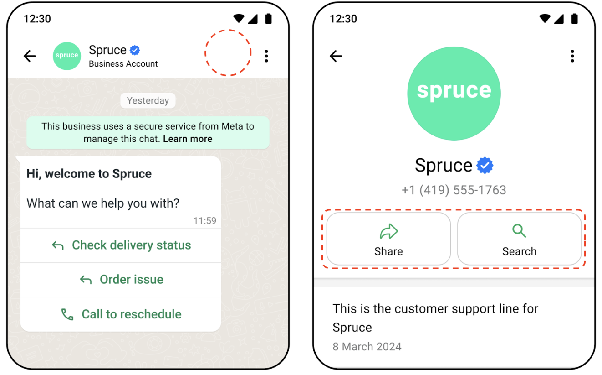
DISABLE_ALL: the icon is hidden in the chat menu and business info window. All entry points outside the chat are also disabled. You can still send interactive messages or templates with a call button (Call CTA).
- Call hours (
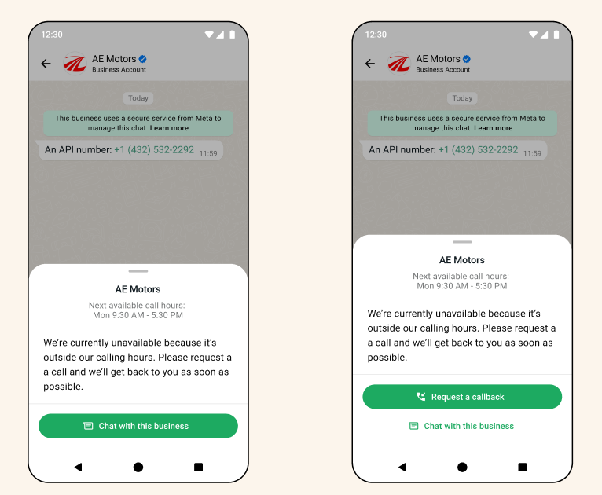
call_hours): calls outside the configured schedule (or within holiday/unavailability periods) are blocked. The client error screen shows the option to chat with the business, request a callback (if enabled) and the next available time.
- Callback permissions (
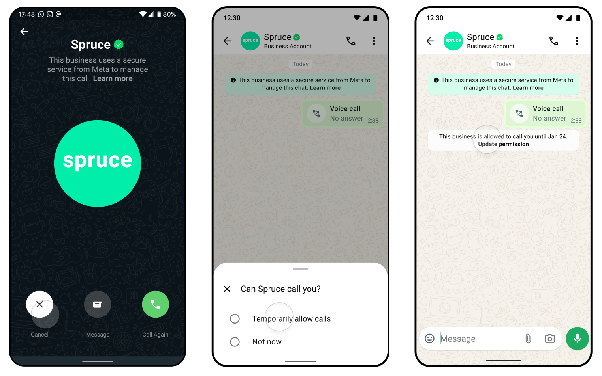
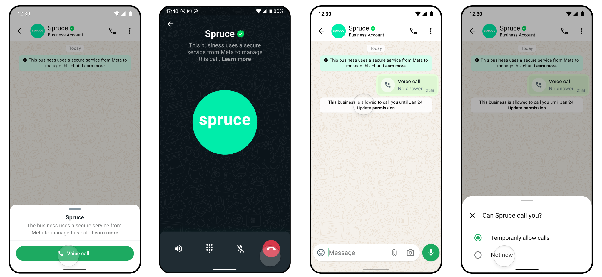
callback_permission_status): a business-initiated call requires explicit user permission. The account can be configured to automatically trigger the call permission request UI after an unanswered user-initiated call. The user can change their selection at any time.
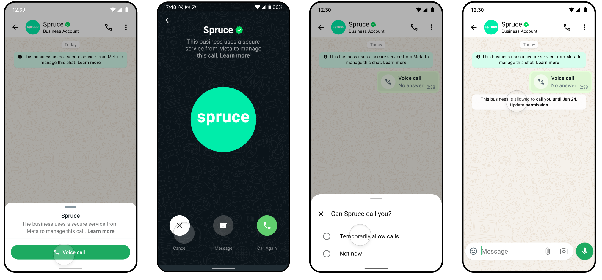
- Planned change (ETA June 2025) — proactive permissions: the consumer app will automatically send an approved call permission when a user initiates a call to the business, regardless of the result. The user can change this selection at any time. This change is transparent for the integration.
Errors:
| Code | Case |
|---|---|
400 | Invalid status, invalid schedule, past holiday date, invalid timezone or invalid format |
403 | Insufficient permissions or authorization |
Get settings
Endpoint: GET /calls/{v}/{did}/settings
Optionally, you can include SIP credentials in the response with the include_sip_credentials=true query param:
GET /calls/{v}/{did}/settings?include_sip_credentials=trueResponse (200):
{
  "calling": {
    "status": "ENABLED",
    "call_icon_visibility": "DEFAULT",
    "callback_permission_status": "ENABLED",
    "call_hours": {
      "status": "ENABLED",
      "timezone_id": "America/Manaus",
      "weekly_operating_hours": [
        {
          "day_of_week": "MONDAY",
          "open_time": "0400",
          "close_time": "1020"
        }
      ],
      "holiday_schedule": []
    },
    "sip": {
      "status": "ENABLED",
      "servers": [
        {
          "hostname": "sip.example.com",
          "sip_user_password": "{SIP_USER_PASSWORD}"
        }
      ]
    },
    "audio": {
      "additional_codecs": ["PCMA", "PCMU"]
    },
    "voicemail": {
      "status": "ENABLED",
      "triggers": ["REJECT", "TIMEOUT"],
      "audio": {
        "default": {
          "announcement_media_id": 938884519013664,
          "timeout_seconds": 20
        }
      }
    }
  }
}
Response with restrictions: if your business has restrictions enforced, the response includes the restrictions object:
{
  "calling": {
    "status": "ENABLED",
    "restrictions": {
      "restrictions_list": [
        {
          "type": "RESTRICTED_BUSINESS_INITIATED_CALLING",
          "reason": "Business initiated calling capability has been temporarily disabled for this phone number due to high negative feedback from users.",
          "expiration": 1754072386
        }
      ]
    }
  }
}
Possible type values are RESTRICTED_BUSINESS_INITIATED_CALLING or RESTRICTED_USER_INITIATED_CALLING. expiration is the Unix timestamp UTC when the restriction expires.
Voicemail
When voicemail is enabled, Cloud API:
- Waits for the configured delay or a reject signal from you.
- Automatically answers the call.
- Plays an audio announcement.
- Records the caller’s voicemail.
- Delivers the voicemail as an audio message via webhook.
Note: when voicemail is enabled, turn off call hours (call_hours), because WhatsApp users cannot place calls outside business hours. Calling must be enabled on the phone number for the voicemail setting to take effect.
Upload the announcement media
Voicemail announcement files must be uploaded through the Media Upload API with use_case=call_voicemail_announcement, which skips the standard 30-day TTL:
curl --request POST \
  --url 'https://channels.chattigo.com/bsp-cloud-chattigo-isv/{v}/{did}/media' \
  --header 'Authorization: Bearer <token>' \
  -F 'file=@<FILE_PATH>;type=audio/ogg' \
  -F 'messaging_product=whatsapp' \
  -F 'use_case=call_voicemail_announcement' \
  -F 'description="Default announcement (English)"'
Media requirements: duration under 60 seconds, MIME audio/ogg with the OPUS codec. Media uploaded with this use_case can only be used as a voicemail announcement, not as a regular message.
Voicemail webhooks
When a user leaves a voicemail, Cloud API delivers the audio through the messages webhook field as an inbound audio message. The difference from a regular audio message: messages[].id contains the call ID (WACID) that produced the voicemail, not a WAMID. Use that ID to correlate the voicemail with the call lifecycle webhooks.
{
  "object": "whatsapp_business_account",
  "entry": [
    {
      "id": "<WABA_ID>",
      "changes": [
        {
          "field": "messages",
          "value": {
            "messaging_product": "whatsapp",
            "metadata": {
              "phone_number_id": "<BUSINESS_PHONE_NUMBER_ID>",
              "display_phone_number": "<BUSINESS_PHONE_NUMBER>"
            },
            "contacts": [
              {
                "wa_id": "<USER_PHONE_NUMBER>",
                "profile": { "name": "<USER_PROFILE_NAME>" }
              }
            ],
            "messages": [
              {
                "id": "wacid.HBgLMTQxMjYxMzYyASG...",
                "from": "<USER_PHONE_NUMBER>",
                "timestamp": "1728932177",
                "type": "audio",
                "audio": {
                  "id": "1002764438271669",
                  "sha256": "Y9vvGyeo3n76ptkXu3CwDBsnzbRFqpjHskQdMGSVqas=",
                  "mime_type": "audio/ogg; codecs=opus"
                }
              }
            ]
          }
        }
      ]
    }
  ]
}
Delivery is best-effort: if voicemail collection fails, no voicemail webhook is sent for that call. No additional subscription is required beyond the standard messages field.
Settings update webhooks
Subscribe to the account_settings_update webhook field to get notified on phone number settings updates. Currently only call settings changes are observed: status, call_icon_visibility, callback_permission_status, sip.status and srtp_key_exchange_protocol.
Requirements: subscribe to account_settings_update, the app must be subscribed to the WABA of the number, and have whatsapp_business_management permission.
{
  "object": "whatsapp_business_account",
  "entry": [
    {
      "id": "whatsapp-business-account-id",
      "changes": [
        {
          "value": {
            "messaging_product": "whatsapp",
            "timestamp": "1671644824",
            "type": "phone_number_settings",
            "phone_number_settings": {
              "phone_number_id": "phone-number-id",
              "calling": {
                "status": "ENABLED",
                "call_icon_visibility": "DEFAULT",
                "callback_permission_status": "ENABLED"
              }
            }
          },
          "field": "account_settings_update"
        }
      ]
    }
  ]
}
Calling restrictions for user feedback
If your calls receive high negative user feedback (blocks and reports), business-initiated calling, user-initiated calling, or both can be restricted.
Early warning
You are notified when the number is close to being paused, via email and the account_update webhook:
{
  "object": "whatsapp_business_account",
  "entry": [
    {
      "id": "0",
      "time": 1623862418,
      "changes": [
        {
          "field": "account_update",
          "value": {
            "phone_number": "PN",
            "event": "ACCOUNT_VIOLATION",
            "violation_info": {
              "violation_type": "LOW_BUSINESS_INITIATED_CALLING_QUALITY"
            }
          }
        }
      ]
    }
  ]
}
Pause in calling functionality
When negative feedback reaches the threshold, Cloud API automatically restricts the functionality for 7 days. While paused:
- Business-initiated calls: cannot make calls to the user or send permission requests.
- User-initiated calls: cannot receive calls or show the call icon.
Permissions approved or declined by users while paused remain valid.
{
  "object": "whatsapp_business_account",
  "entry": [
    {
      "id": "0",
      "time": 1641848059,
      "changes": [
        {
          "field": "account_update",
          "value": {
            "phone_number": "PN",
            "event": "ACCOUNT_RESTRICTION",
            "restriction_info": [
              {
                "restriction_type": "RESTRICTED_BUSINESS_INITIATED_CALLING",
                "expiration": 1641848057
              }
            ]
          }
        }
      ]
    }
  ]
}
Calling restrictions for low call pickup rates
When inbound calls are frequently not picked up, you are notified and the call button may be hidden.
Warning: email with options to change how you handle incoming calls.
Restriction: if the situation persists, the call button is hidden from users. To mitigate: identify the cause of unanswered calls and ensure enough resources, or disable buttons / calls via WhatsApp Manager.
Warning webhook:
{
  "object": "whatsapp_business_account",
  "entry": [
    {
      "id": "0",
      "time": 1641848059,
      "changes": [
        {
          "field": "account_update",
          "value": {
            "phone_number": "16505552771",
            "event": "ACCOUNT_VIOLATION",
            "violation_info": {
              "violation_type": "USER_INITIATED_CALLS_LOW_PICKUP_RATE",
              "remediation": "Please identify and address the cause of user-initiated calls not being picked up."
            }
          }
        }
      ]
    }
  ]
}
Enforcement webhook:
{
  "object": "whatsapp_business_account",
  "entry": [
    {
      "id": "0",
      "time": 1641848059,
      "changes": [
        {
          "field": "account_update",
          "value": {
            "phone_number": "16505552771",
            "event": "ACCOUNT_RESTRICTION",
            "restriction_info": [
              {
                "restriction_type": "RESTRICTED_USER_INITIATED_CALLING_CALL_BUTTON_HIDDEN",
                "remediation": "The call button has been hidden due to low pickup rates."
              }
            ]
          }
        }
      ]
    }
  ]
}
Consumer-initiated calls
The Calling API supports receiving calls made by WhatsApp users to your business. Your business dictates when calls can be received by configuring call hours and holiday unavailability.
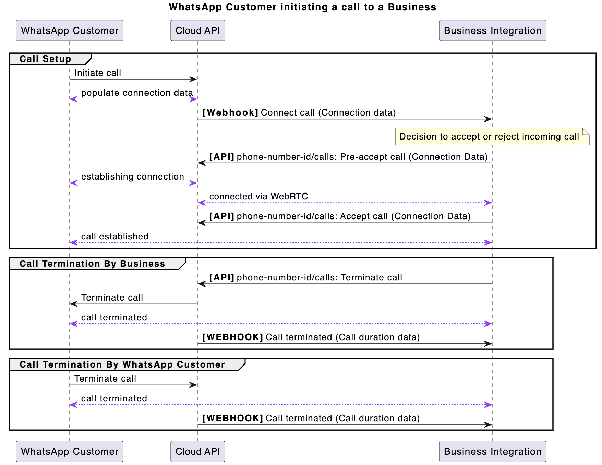
The user-initiated call flow is:
- The user calls your business — you receive the Connect webhook with an
SDP Offer. - Pre-accept (recommended) — establishes the media connection before sending media, avoiding audio clipping.
- Accept — once the WebRTC connection is established, accept the call. Media flows immediately after the
200 OK. - Terminate — either you or the user can hang up. You receive the Terminate webhook.
You have approximately 30 to 60 seconds after the Connect webhook to respond. If you do not respond, the call is terminated on the user side with a “Not Answered” notification and a termination webhook is delivered.
Pre-accept
Answer a user-initiated call by pre-accepting it. It eases call setup and avoids audio clipping: it establishes the WebRTC connection before accepting the call, without sending media.
Endpoint: POST /calls/{v}/{did}/signaling
Request:
{
  "messaging_product": "whatsapp",
  "call_id": "wacid.ABGGFjFVU2AfAgo6V-Hc5eCgK5Gh",
  "action": "pre_accept",
  "session": {
    "sdp_type": "answer",
    "sdp": "<<RFC 8866 SDP>>"
  }
}
Response (200):
{
  "messaging_product": "whatsapp",
  "success": true
}
Accept
Accepts a previously pre-accepted call, providing the agent SDP. The business has a limited time (30–60 seconds) to answer the user’s call; if it does not respond, the call ends with “Unanswered” and a termination webhook is sent.
Endpoint: POST /calls/{v}/{did}/signaling
Request:
{
  "messaging_product": "whatsapp",
  "call_id": "wacid.ABGGFjFVU2AfAgo6V-Hc5eCgK5Gh",
  "action": "accept",
  "session": {
    "sdp_type": "answer",
    "sdp": "<<RFC 8866 SDP>>"
  },
  "biz_opaque_callback_data": "random data"
}
Response (200):
{
  "messaging_product": "whatsapp",
  "success": true
}
Reject
Rejects a user-initiated call.
Endpoint: POST /calls/{v}/{did}/signaling
Request:
{
  "messaging_product": "whatsapp",
  "call_id": "wacid.ABGGFjFVU2AfAgo6V-Hc5eCgK5Gh",
  "action": "reject"
}
Response (200):
{
  "messaging_product": "whatsapp",
  "success": true
}
Hang up
Ends an active call. It must be invoked even if there is an RTCP BYE packet in the media path, to get more accurate pricing. When the consumer ends the call, this API is not required; a termination webhook will be sent.
Endpoint: POST /calls/{v}/{did}/signaling
Request:
{
  "messaging_product": "whatsapp",
  "call_id": "wacid.ABGGFjFVU2AfAgo6V-Hc5eCgK5Gh",
  "action": "terminate"
}
Response (200):
{
  "messaging_product": "whatsapp",
  "success": true
}
Common signaling body fields:
| Field | Required | Description |
|---|---|---|
call_id | Yes | ID of the call previously received in the webhook. |
action | Yes | pre_accept, accept, reject or terminate. |
session | Depending on the action | Session connection info. Requires sdp_type and sdp. The SDP must comply with RFC 8866. |
biz_opaque_callback_data | No | Arbitrary string for tracking, included in subsequent webhooks. Max 512 characters. |
Call webhooks
Call webhooks use a structure similar to messaging. A calls section within the webhook value section contains the call-related fields.
Connect
Sent in near real time when the business receives an inbound call, including the SDP info to establish the WebRTC connection.
{
  "object": "whatsapp_business_account",
  "entry": [
    {
      "id": "whatsapp-business-account-id",
      "changes": [
        {
          "value": {
            "messaging_product": "whatsapp",
            "metadata": {
              "display_phone_number": "16315553601",
              "phone_number_id": "phone-number-id"
            },
            "contacts": [
              {
                "profile": {
                  "name": "callee name",
                  "username": "<USERNAME>"
                },
                "wa_id": "16315553602",
                "user_id": "<BSUID>",
                "parent_user_id": "<PARENT_BSUID>"
              }
            ],
            "calls": [
              {
                "id": "wacid.ABGGFjFVU2AfAgo6V-Hc5eCgK5Gh",
                "to": "16315553601",
                "to_user_id": "<BSUID>",
                "to_parent_user_id": "<PARENT_BSUID>",
                "from": "16315553602",
                "event": "connect",
                "timestamp": "1671644824",
                "direction": "BUSINESS_INITIATED",
                "connection": {
                  "webrtc": {
                    "sdp": "<<RFC 8866 SDP>>"
                  }
                },
                "session": {
                  "sdp_type": "offer",
                  "sdp": "<<RFC 8866 SDP>>"
                }
              }
            ]
          },
          "field": "calls"
        }
      ]
    }
  ]
}
calls object fields:
| Field | Description |
|---|---|
id | Unique ID created for the call. |
to | Call recipient. May be omitted if the user adopted a username and the phone number cannot be included. |
to_user_id | The BSUID of the WhatsApp user. |
to_parent_user_id | The parent BSUID of the user. Only included if parent BSUIDs are enabled. |
from | Call caller. May be omitted if the user adopted a username. |
from_user_id | The BSUID of the caller (for user-initiated calls). |
from_parent_user_id | The parent BSUID of the caller. Only included if parent BSUIDs are enabled. |
event | Event the webhook notifies about. |
timestamp | Event timestamp. |
direction | BUSINESS_INITIATED or USER_INITIATED. |
deeplink_payload | Arbitrary string from the biz_payload query param of a call deeplink. Only if the call was initiated from a deeplink with that param. |
cta_payload | Arbitrary string from the payload field of a call button. Only if the call was initiated from a button with payload. |
connection | WebRTC connection info. connection.webrtc.sdp is the SDP of the other end. |
session | Session connection info; contains sdp and sdp_type. |
sdp | Session description protocol data of the other end. Must comply with RFC 8866. |
sdp_type | SDP type: offer for user-initiated calls, answer for business-initiated ones. |
contacts | Recipient profile: profile.name, profile.username (optional), wa_id (may be omitted), user_id (BSUID), parent_user_id (optional). |
Terminated
Sent when the call has been terminated for any reason (consumer hangs up or the business invokes terminate).
{
  "object": "whatsapp_business_account",
  "entry": [
    {
      "id": "whatsapp-business-account-id",
      "changes": [
        {
          "value": {
            "messaging_product": "whatsapp",
            "metadata": {
              "display_phone_number": "16505553602",
              "phone_number_id": "phone-number-id"
            },
            "calls": [
              {
                "id": "wacid.ABGGFjFVU2AfAgo6V-Hc5eCgK5Gh",
                "to": "16315553601",
                "from": "16315553602",
                "event": "terminate",
                "direction": "BUSINESS_INITIATED",
                "biz_opaque_callback_data": "random data",
                "timestamp": "1671644824",
                "status": "COMPLETED",
                "start_time": "1671644824",
                "end_time": "1671644944",
                "duration": 120
              }
            ],
            "errors": [
              {
                "code": 222,
                "message": "ERROR_TITLE",
                "href": "ERROR_HREF",
                "error_data": {
                  "details": "ERROR_DETAILS"
                }
              }
            ]
          },
          "field": "calls"
        }
      ]
    }
  ]
}
Relevant fields:
| Field | Description |
|---|---|
direction | Call direction relative to the business. |
status | COMPLETED (completed, including rejected by the recipient) or FAILED (failed mid-connection). |
start_time / end_time | Call start and end time. Only present if the other party answered. |
duration | Duration in seconds. Only present if the other party answered. |
errors | Error details when the status is FAILED. |
biz_opaque_callback_data | Only available if provided in the call request. |
Call CTA messages
After you adopt Cloud API Calling features, you can raise awareness with your customers in two core ways:
- Send them a message with a WhatsApp call button.
- Embed a calling deep link into your brand surfaces (website, application, and so on).
Send an interactive message with a call button
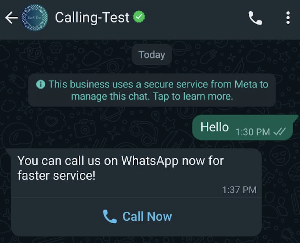
Sends an interactive message with the WhatsApp call button during a customer service window or an open conversation window. When the user clicks the button, a WhatsApp call to the business number that sent the message is initiated.
Endpoint: POST /{v}/{did}/messages
Request:
{
  "messaging_product": "whatsapp",
  "recipient_type": "individual",
  "to": "14085551234",
  "recipient": "US.13491208655302741918",
  "type": "interactive",
  "interactive": {
    "type": "voice_call",
    "body": {
      "text": "You can call us on WhatsApp now for faster service!"
    },
    "action": {
      "name": "voice_call",
      "parameters": {
        "display_text": "Call on WhatsApp",
        "ttl_minutes": 100,
        "payload": "payload data"
      }
    }
  }
}
Rules:
interactive.typemust bevoice_callandinteractive.bodyis required.interactive.footeris not allowed.tois required (unlessrecipient);recipient(BSUID or parent BSUID) can be used instead of, or in addition to,to. If both are provided,totakes precedence.display_textdefaults toCall now; max length 20 characters.ttl_minutes(optional): button lifetime, between1and43200(30 days). Default10080(7 days).payload(optional): arbitrary string for tracking. Included in theconnectandterminatewebhooks under thecta_payloadfield. Max 512 characters. Only available to WhatsApp clients from version 2.25.27.- Sending this message to users on old versions triggers an error webhook with code
131026.
Create a template with a call button
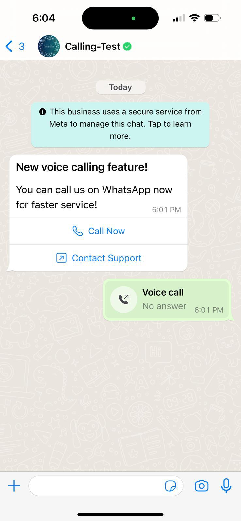
The templates API supports the voice_call button, which triggers a WhatsApp call on click. It can be used anywhere the phone number button is supported.
Endpoint: POST /message_templates/{v}/{did}
Request:
{
  "name": "<NAME>",
  "category": "<CATEGORY>",
  "language": "<LANGUAGE>",
  "components": [
    {
      "type": "BODY",
      "text": "You can call us on WhatsApp now for faster service!"
    },
    {
      "type": "BUTTONS",
      "buttons": [
        {
          "type": "voice_call",
          "text": "Call Now",
          "ttl_minutes": 1440
        },
        {
          "type": "URL",
          "text": "Contact Support",
          "url": "https://www.example.com/support"
        }
      ]
    }
  ]
}
voice_call button rules in templates:
typemust bevoice_call.text(optional): the button label. DefaultCall Now; max 20 characters.ttl_minutes(optional): button lifetime, between1440(1 day) and43200(30 days). Can be overridden when sending the message.- Not supported in carousel, authentication, catalog, coupon, limited-time-offer, SPM or MPM templates.
Send a call button template message
Sends the call button template to a user. You can override ttl_minutes and send a tracking payload.
Endpoint: POST /{v}/{did}/messages
Request:
{
  "to": "14085551234",
  "recipient": "US.13491208655302741918",
  "messaging_product": "whatsapp",
  "type": "template",
  "recipient_type": "individual",
  "template": {
    "name": "wa_voice_call",
    "language": {
      "code": "en"
    },
    "components": [
      {
        "type": "button",
        "sub_type": "voice_call",
        "parameters": [
          {
            "type": "ttl_minutes",
            "ttl_minutes": 100
          },
          {
            "type": "payload",
            "payload": "payload data"
          }
        ]
      }
    ]
  }
}
button component parameters:
| Field | Description |
|---|---|
ttl_minutes | Button lifetime, between 1 and 43200 (30 days). Default 10080 (7 days). |
payload | Arbitrary string for tracking. Included in the connect and terminate webhooks under cta_payload. Max 512 characters. Only available to clients from version 2.25.27. |
Calling deep links
Calling deep links are hyperlinks that route WhatsApp users to call your business. The process is similar to a chat deep link, except the format is:
wa.me/call/<BUSINESS_PHONE_NUMBER>Note: deep links are not supported on WhatsApp desktop clients.
- Embed calling deep links: use them to advertise WhatsApp calling anywhere it’s useful, such as your website, primary application, or a QR code.
- Send calling deep links: you can send messages to WhatsApp users with a calling deep link. Since deep links can be made per business phone number, you can use them to prompt users to contact a different number with voice enabled. The
wa.me/call/<BUSINESS_PHONE_NUMBER>format is easy to copy, paste, and send, and does not require a template. - Send payload data in a call deep link: you can send a payload with the
biz_payloadquery string:
wa.me/call/<BUSINESS_PHONE_NUMBER>?biz_payload=payloadWhen a user calls using the deep link with biz_payload, any app subscribed to the calls field can get this string in the connect and terminate webhooks under the deeplink_payload field. The deep link payload is only available to WhatsApp clients from version 2.25.27.
Call error codes
Most errors have the following shape:
{
  "error": {
    "message": "<Error Message>",
    "type": "<Exception Type>",
    "code": <Exception Code>,
    "fbtrace_id": "<Trace ID>"
  }
}| Code | Description | Possible solution | HTTP |
|---|---|---|---|
100 | Invalid parameter in the API call. | Check error_data for the exact detail. If it’s an SDP validation error, the exact issue is included in the details. | 400 |
613 | Fetch Call Permission API limit reached. | Retry later or reduce request frequency. | 429 |
131009 | The voice_call interactive message type is not supported. Supported types [button, list]. | Check that the sender is in a supported country. | 400 |
131030 | Recipient phone number is not in the allowed list. Applies to calls and permission requests, only with public test numbers (PTNs). | Add the recipient number to the allowed list and retry. | 400 |
131044 | Payment error on user-initiated calls. | Attach a valid payment method. | 400 |
131055 | Method not allowed. Graph API calls are not allowed for SIP-enabled numbers. | Use SIP for SIP-enabled business numbers. | 400 |
138000 | Calls not enabled for this phone number. | Configure call settings to enable Calling API features. | 401 |
138001 | The recipient cannot receive calls (not WhatsApp, did not accept terms, or uses an unsupported client). | Confirm the recipient uses the latest WhatsApp version and accepted communication. | 400 |
138002 | Concurrent call limit reached (max 1000) for the number. | Retry later or reduce call frequency. | 429 |
138003 | Duplicate call: there is already an active call with the recipient. | Retry when the current call ends. | 400 |
138004 | Error connecting the call. | Retry or review the connection parameters. | 500 |
138005 | Call rate limit exceeded. | Retry later or reduce frequency. | 429 |
138006 | No approved call permission found. | Make sure the consumer accepted the call permission. | 401 |
138007 | The call failed to connect due to a timeout. | Apply the Cloud API SDP offer/answer on time. | 500 |
138009 | Call permission request limit reached. | A connected call with the consumer resets the limits. | 400 |
138012 | Limit of business-initiated calls in 24 hours reached (100 connected calls). | Check error_data for the detail, includes a timestamp of the next allowed call. | 400 |
138013 | Business-initiated calling is not available for this number. | Confirm business-initiated calling is available in your location. | 400 |
138014 | Calling temporarily disabled for low quality. | Make sure your outreach is valuable and not spam. Retry after restrictions are lifted. | 400 |
138015 | Calling cannot be enabled for this number. | Check that the messaging limit is 2000 or more. | 400 |
138017 | Call permission request cannot be sent because a permanent permission already exists. | No need to send permission requests. | 400 |
138018 | WhatsApp Business calling cannot be enabled because technical prerequisites are not met. | Configure SIP or ensure at least one app subscribed to the WABA is also subscribed to the calls field. | 400 |
138019 | Call setup failed (client). Sent in the terminate webhook. | Retry later. | 400 |
138020 | Relay connection failed (client). Sent in the terminate webhook. | Retry later. | 400 |
138021 | Media receive timeout: the client terminated due to not receiving media for a long time. | Confirm media is being sent to the relay and retry. | 400 |
138022 | Media transmit timeout: the client terminated due to not transmitting media for a long time. | Retry later. | 400 |
138023 | Call accepted but terminated with no media connection signals. Cloud API could not determine if the call connected. | Retry later. | 400 |
DTMF support
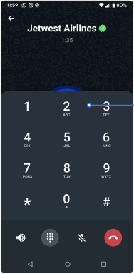
Cloud API supports DTMF tones to integrate IVR systems. Consumers press buttons in the client app and the tones are injected into the WebRTC RTP stream established as part of the VoIP connection.
- The WebRTC stream complies with RFC 4733 for DTMF digit transport over RTP.
- There is no webhook to transmit DTMF digits.
- The dial pad only supports DTMF use cases; it does not change any other call behavior.
- Tone values are digits
0–9,#and*. Tone duration is 500 ms and the interval between tones is 100 ms.
Clock rate: only the 8000 clock rate is supported in our SDPs. For user-initiated calls, the SDP offer includes only the 8000 clock rate. For business-initiated calls, your SDP offer should use the 8000 clock rate; even if it is absent, the API proceeds with 8000 against payload type 126. DTMF RTP packets use the same timestamp and sequence number base as regular audio packets (no need to worry about differing clock rates). The DTMF packet duration field is calculated using 8000 clock units. The API does not support the 48000 clock rate for DTMF.
Business-initiated calls
Product overview
The Calling API lets your business call WhatsApp users. The user controls when your business can call them by granting call permissions to your business phone number.
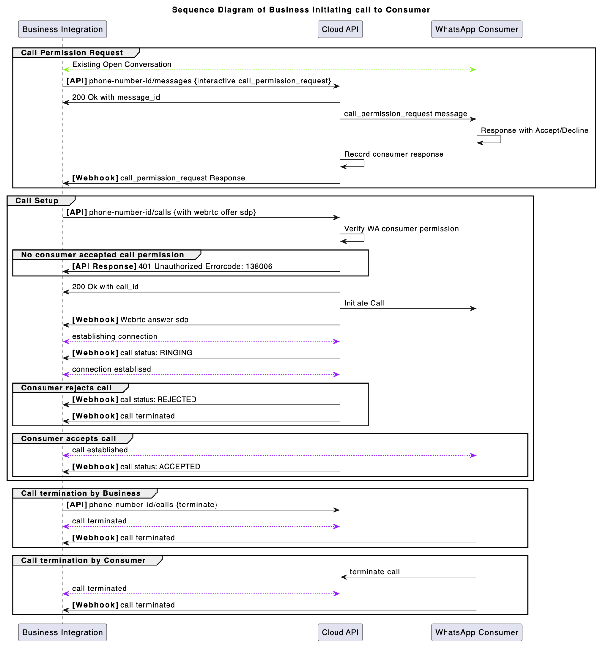
The business-initiated call flow is:
- Obtain permission from the user to call them (permission request message or enabled
callback_permission_status). - Initiate the call with
action: connect, identifying the user by phone number (to), BSUID (recipient), or both. - Establish the connection: you receive the Connect webhook with an
SDP Answerfrom Cloud API and apply it to your WebRTC stack to start the media connection. Then you receive status webhooks (RINGING,ACCEPTED,REJECTED). TheACCEPTEDstatus webhook arrives after the call is established; Cloud API sends it for call event auditing. - Terminate the call: either you or the user can hang up. When terminated, you receive the Terminate webhook.
To call a user, the business must first obtain the user’s permission. When a user grants call permissions, they can be temporary or permanent. As of November 3, 2025, permanent permissions are available: users can grant a business ongoing permission to call. The user can review and change the calling permission at any time from the business profile.
The business does not control this permission; only the user can grant or revoke it, at any time. WhatsApp stores permanent permission data until the user revokes it.
A business can obtain permission in the following ways:
- Send a call permission request to the user — free-form or template message; the user chooses between temporary or permanent.
- Callback permission — the user automatically grants a temporary permission by calling the business. You must enable
callback_permission_statuson the number. - Permission via business profile — the user grants permission through the business profile.
Note: call permission features are available only in regions where business-initiated calling is available.
When granted, a call permission allows calling the user subject to the following restrictions (per business + consumer pair):
| Concept | Description | Limits |
|---|---|---|
| Permission duration | Period the business can call from approval. | Temporary: 7 calendar days (168 hours) from approval. Permanent: no limit (same connected-call limit). |
| Call limits | Connected calls the business can make to the user. Failed ones do not count. | 100 connected calls per user every 24 hours. Applied to the business phone number. |
Requesting user permission
The permission request is sent as a free-form interactive message or as a template message. The consumer can approve, reject or not respond; they can also change their answer before it expires.
The request expires when any of these happens:
- The consumer interacts with a subsequent permission request.
- 7 days after the consumer accepted or rejected the permission.
- 7 days after delivery if the consumer does not respond.
Send limits:
- Max 1 permission request in 24 hours and 2 requests in 7 days per pair. The limit resets with a connected call between the business and the consumer.
- 2 consecutive unanswered calls trigger a system message to reconsider the approved permission.
- 4 consecutive unanswered calls automatically revoke the approved permission.
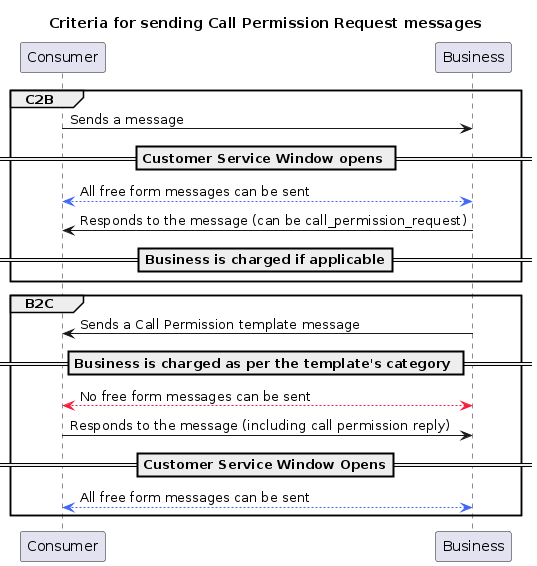
Send methods:
- Free-form message: in response to a user message, subject to the customer service window. Body text is optional; header and footer are not supported.
- Template message: lets you start a conversation with a call request. The body is required; header and footer are supported.
API: Send a free-form permission request
Endpoint: POST /{v}/{did}/messages
Request:
{
  "messaging_product": "whatsapp",
  "recipient_type": "individual",
  "to": "<phone number> or <wa_id>",
  "recipient": "US.13491208655302741918",
  "type": "interactive",
  "interactive": {
    "type": "call_permission_request",
    "action": {
      "name": "call_permission_request"
    },
    "body": {
      "text": "We would like to call you to help support your query on Order No: ON-12345."
    }
  }
}
Response (200):
{
  "messaging_product": "whatsapp",
  "contacts": [
    {
      "input": "+1-408-555-1234",
      "wa_id": "14085551234",
      "user_id": "<BSUID>",
      "parent_user_id": "<PARENT_BSUID>"
    }
  ],
  "messages": [
    {
      "id": "wamid.gBGGFlaCmZ9plHrf2Mh-o"
    }
  ]
}
Notes:
- Only
typeandaction.nameare required.action.namemust becall_permission_request. tois required (unlessrecipient);recipient(BSUID or parent BSUID) can be used instead of, or in addition to,to. If both are provided,totakes precedence.bodyis optional and gives the user context.- The business cannot edit the content of the call permission interactive message; only the
body. - Requires an open customer service window with the user account.
- Sending to users on older app versions triggers an error webhook with code
131026.
API: Create a template with permission request
Endpoint: POST /message_templates/{v}/{did}
Request:
{
  "name": "sample_cpr_template",
  "language": "en",
  "category": "UTILITY",
  "components": [
    {
      "type": "HEADER",
      "text": "Support of Order No: {{1}}",
      "example": {
        "body_text": [["ON-12345"]]
      }
    },
    {
      "type": "BODY",
      "text": "We would like to call you to help support your query on Order No: {{1}} for the item {{2}}.",
      "example": {
        "body_text": [["ON-12345", "Avocados"]]
      }
    },
    {
      "type": "FOOTER",
      "text": "Talk to you soon!"
    },
    {
      "type": "call_permission_request"
    }
  ]
}
Response (200):
{
  "id": "<ID>",
  "status": "<STATUS>",
  "category": "<CATEGORY>"
}
Notes:
- The
bodycomponent is required and only supports text. - Header and footer are optional.
- Supported categories: Marketing and Utility.
- The
call_permission_requesttype identifies the template. - Media is not supported in this template.
API: Send a permission request template
Endpoint: POST /{v}/{did}/messages
Request:
{
  "messaging_product": "whatsapp",
  "recipient_type": "individual",
  "to": "{user number}",
  "type": "template",
  "template": {
    "name": "sample_cpr_template",
    "language": {
      "policy": "deterministic",
      "code": "en_US"
    },
    "components": [
      {
        "type": "header",
        "parameters": [
          {
            "type": "text",
            "text": "ON-12345"
          }
        ]
      },
      {
        "type": "body",
        "parameters": [
          {
            "type": "text",
            "text": "ON-12345"
          },
          {
            "type": "text",
            "text": "Avocados"
          }
        ]
      }
    ]
  }
}
Response (200):
{
  "messaging_product": "whatsapp",
  "contacts": [
    {
      "input": "+1-408-555-1234",
      "wa_id": "+1-408-555-1234"
    }
  ],
  "messages": [
    {
      "id": "wamid.gBGGFlaCmZ9plHrf2Mh-o"
    }
  ]
}
API: Get the call permission status
Gets the call permission state for a business phone number with a single WhatsApp user. You can identify the user by phone number (user_wa_id) or by their BSUID (recipient).
Endpoint: GET /calls/{v}/{did}/call_permissions?user_wa_id={user_whatsapp_id}
Or using a BSUID:
Endpoint: GET /calls/{v}/{did}/call_permissions?recipient={BSUID}
Response (200):
{
  "messaging_product": "whatsapp",
  "permission": {
    "status": "temporary",
    "expiration_time": 1745343479
  },
  "actions": [
    {
      "action_name": "send_call_permission_request",
      "can_perform_action": true,
      "limits": [
        {
          "time_period": "PT24H",
          "max_allowed": 1,
          "current_usage": 0
        },
        {
          "time_period": "P7D",
          "max_allowed": 2,
          "current_usage": 1
        }
      ]
    },
    {
      "action_name": "start_call",
      "can_perform_action": false,
      "limits": [
        {
          "time_period": "PT24H",
          "max_allowed": 5,
          "current_usage": 5,
          "limit_expiration_time": 1745622600
        }
      ]
    }
  ]
}
Response fields:
| Field | Description |
|---|---|
permission.status | no_permission, temporary or permanent. |
permission.expiration_time | Unix timestamp (seconds) of permission expiration. Absent for permanent permissions. |
actions[].action_name | send_call_permission_request or start_call. |
actions[].can_perform_action | Indicates whether the action can be performed now, considering all limits. |
actions[].limits[] | Restrictions per period: time_period (ISO 8601, e.g. PT24H, P7D), max_allowed, current_usage and limit_expiration_time (optional). |
Errors:
| Code | Case |
|---|---|
400 | Invalid consumer phone number format |
401 | No approved permission found |
429 | Rate limit reached (max 100 requests in 1 second) |
Call permission webhooks
Temporary approval
When the consumer approves a temporary permission, the interactive section of the message webhook contains call_permission_reply.
{
  "object": "whatsapp_business_account",
  "entry": [
    {
      "id": "{phone-number-id}",
      "changes": [
        {
          "value": {
            "messaging_product": "whatsapp",
            "metadata": {
              "display_phone_number": "{phone-number}",
              "phone_number_id": "{phone-number-id}"
            },
            "contacts": [
              {
                "profile": { "name": "NAME" },
                "wa_id": "{phone-number}"
              }
            ],
            "messages": [
              {
                "from": "{phone-number}",
                "id": "wamid.sH0kFlaCGg0xcvZbgmg90lHrg2dL",
                "timestamp": "{TIMESTAMP}",
                "context": {
                  "from": "{phone-number}",
                  "id": "wamid.gBGGFlaCmZ9plHrf2Mh-o"
                },
                "interactive": {
                  "type": "call_permission_reply",
                  "call_permission_reply": {
                    "response": "accept",
                    "is_permanent": false,
                    "expiration_timestamp": "{timestamp}",
                    "response_source": "user_action"
                  }
                }
              }
            ]
          },
          "field": "messages"
        }
      ]
    }
  ]
}
Permanent approval
Same as temporary approval, with is_permanent: true and no expiration_timestamp.
Rejection
Same as approval, with response: "reject". response_source can be user_action (the user rejected) or automatic (automatic rejection due to unanswered-call limits).
Permission from the callback flow
When the permission is granted after a lost consumer-initiated call, context.id contains the call ID of the lost call.
call_permission_reply fields:
| Field | Description |
|---|---|
response | accept or reject. |
is_permanent | Whether the permission is permanent. |
expiration_timestamp | Unix timestamp of expiration if the consumer approved. |
response_source | user_action (the user approved or rejected) or automatic (automatic approval after a user-initiated call, or automatic rejection due to limits). |
Start a new call
Initiates a call to a WhatsApp user. There is a rate limit of 10,000 new calls per 24 hours per business phone number.
Endpoint: POST /calls/{v}/{did}/signaling
Request:
{
  "messaging_product": "whatsapp",
  "to": "14085551234",
  "recipient": "US.13491208655302741918",
  "action": "connect",
  "session": {
    "sdp_type": "offer",
    "sdp": "<<RFC 8866 SDP>>"
  },
  "biz_opaque_callback_data": "0fS5cePMok"
}
Response (200):
{
  "messaging_product": "whatsapp",
  "calls": [
    {
      "id": "wacid.ABGGFjFVU2AfAgo6V"
    }
  ]
}
Body parameters:
| Field | Required | Description |
|---|---|---|
to | Required (unless recipient) | The number of the user being called. The user can be identified by phone number (to), BSUID (recipient), or both. If both are provided, to takes precedence. |
recipient | No | The WhatsApp user’s BSUID or parent BSUID. Use it instead of, or in addition to, to. |
action | Yes | connect to initiate a new call. |
session | Yes | Contains sdp_type (offer) and sdp. The SDP must comply with RFC 8866. |
biz_opaque_callback_data | No | Arbitrary string for tracking. Max 512 characters. Included in subsequent webhooks. |
Errors:
| Code | Case |
|---|---|
400 | Request format validation errors (SDP, ICE, etc.) |
401 | Permission or authorization errors |
138006 | The consumer does not have permission to receive calls from this number |
Call status webhooks
Sent on specific events of a business-initiated call: ringing (the call starts ringing), accepted (the consumer accepts) and rejected (the consumer rejects).
{
  "object": "whatsapp_business_account",
  "entry": [
    {
      "id": "whatsapp-business-account-id",
      "changes": [
        {
          "value": {
            "messaging_product": "whatsapp",
            "metadata": {
              "display_phone_number": "16315553601",
              "phone_number_id": "phone-number-id"
            },
            "statuses": [
              {
                "id": "wacid.ABGGFjFVU2AfAgo6V",
                "timestamp": "1671644824",
                "type": "call",
                "status": "RINGING",
                "recipient_id": "16315553602",
                "biz_opaque_callback_data": "random data"
              }
            ]
          },
          "field": "calls"
        }
      ]
    }
  ]
}
statuses fields:
| Field | Description |
|---|---|
id | Call ID this status refers to. |
type | call for call webhooks. |
recipient_id | Consumer WhatsApp phone number the call is addressed to. |
timestamp | Event timestamp. |
status | RINGING, ACCEPTED or REJECTED. |
biz_opaque_callback_data | Only available if provided in the call request. |
Call recording
The Calling API can record the audio of business-initiated calls (BIC) and user-initiated calls (UIC) you make through the WhatsApp Business Cloud API. When you opt a call into recording, both participants hear a short legally required announcement before the recording begins. After the call ends, you receive a webhook with a media ID you can use to download the finished recording.
Recording is opt-in on a per-call basis — you decide at the time you initiate or accept each call whether it should be recorded. It is independent of call transcription: you can enable either one on its own, both together, or neither. Each is configured and priced separately, has its own request object, and delivers its result in its own webhook event.
Enable recording on a business-initiated call
Add a recording object to your business-initiated call request body:
Endpoint: POST /calls/{v}/{did}/signaling
{
  "messaging_product": "whatsapp",
  "to": "14085551234",
  "recipient": "US.13491208655302741918",
  "action": "connect",
  "session": {
    "sdp_type": "offer",
    "sdp": "<<RFC 8866 SDP>>"
  },
  "recording": {
    "status": "ENABLED",
    "purpose": "quality assurance",
    "announcement_language": "en_US"
  }
}
Enable recording on a user-initiated call
Add the same recording object when you accept an incoming call:
{
  "messaging_product": "whatsapp",
  "call_id": "wacid.ABGGFjFVU2AfAgo6V",
  "action": "accept",
  "session": {
    "sdp_type": "answer",
    "sdp": "<<RFC 8866 SDP>>"
  },
  "recording": {
    "status": "ENABLED",
    "purpose": "quality assurance",
    "announcement_language": "en_US"
  }
}
To accept an incoming call without recording it, either omit the recording field entirely or send it with "status": "DISABLED".
Announcements and consent
Before any audio is recorded, the Calling API mixes a spoken announcement into both your business and the WhatsApp user audio streams. The announcement is generated from the purpose string you provide and the announcement_language you select, for example:
“The audio of this call will be recorded for the following purpose:
.”
The recording starts only after the announcement has finished playing. A participant who does not consent can decline by terminating the call before or during the announcement. The purpose field is mandatory whenever status is ENABLED; calls submitted with recording enabled but without a purpose are rejected with a request error.
recording object reference
| Field | Type | Required | Description |
|---|---|---|---|
status | String | Yes | ENABLED to record the call, DISABLED to explicitly opt out. |
purpose | String | Yes, when status is ENABLED | The purpose of the recording, spoken to both participants as part of the announcement. Maximum 250 characters. Provide the text in the language you specified in announcement_language. |
announcement_language | String | Yes, when status is ENABLED | Locale code for the language of the spoken announcement, for example en_US or es. |
Supported announcement languages
| Language | announcement_language |
|---|---|
| English | en (also en_US, en_AU, en_CA, en_GB, en_IN, en_NZ) |
| Dutch | nl |
| French | fr |
| German | de |
| Hindi | hi |
| Italian | it |
| Kannada | kn |
| Portuguese (Brazil) | pt |
| Spanish (Latin America) | es |
| Spanish (Spain) | es_ES |
| Telugu | te |
| Vietnamese | vi |
Using recording with transcription
Recording and transcription are fully independent. The recording and transcription objects are separate request fields, so you choose each one independently on a per-call basis:
- Send only
recordingto receive an audio recording and no transcript. - Send only
transcriptionto receive a transcript and no audio recording. - Send both objects to receive both an audio recording and a transcript.
- Omit both (or set both to
DISABLED) to receive neither.
When you enable both on the same call, participants hear a single combined announcement:
“The audio of this call will be recorded and transcribed for the following purpose:
.”
When both objects are present, the announcement_language and purpose from the recording object are used for this combined announcement, and the corresponding values in the transcription object are ignored. You still receive a separate webhook for each enabled feature.
Recording-available webhook
After the call ends and post-processing finishes (typically under one minute), the Calling API sends a call_recording_available event under the existing calls webhook field:
{
  "object": "whatsapp_business_account",
  "entry": [
    {
      "id": "<WABA_ID>",
      "changes": [
        {
          "field": "calls",
          "value": {
            "messaging_product": "whatsapp",
            "metadata": {
              "phone_number_id": "<BUSINESS_PHONE_NUMBER_ID>",
              "display_phone_number": "<BUSINESS_DISPLAY_PHONE_NUMBER>"
            },
            "calls": [
              {
                "id": "wacid.HBgLMTQxMjYxMzYyNTMVAgASGCBGO...",
                "from": "<USER_PHONE_NUMBER>",
                "from_user_id": "<BSUID>",
                "from_parent_user_id": "<PARENT_BSUID>",
                "timestamp": "1728932177",
                "event": "call_recording_available",
                "call_recording": {
                  "type": "audio",
                  "audio": {
                    "id": "1002764438271669",
                    "sha256": "Y9vvGyeo3n76ptkXu3CwDBsnzbRFqpjHskQdMGSVqas=",
                    "mime_type": "audio/ogg; codecs=opus",
                    "url": "https://lookaside.fbsbx.com/whatsapp_business/attachments/?mid=133..."
                  }
                }
              }
            ]
          }
        }
      ]
    }
  ]
}
call_recording fields:
| Field | Type | Description |
|---|---|---|
type | String | Media type of the recording. Currently always audio. |
audio.id | String | Media asset ID. Use the Media API to retrieve the media URL for download. |
audio.sha256 | String | Base64-encoded SHA-256 hash of the recording. Use it to verify the downloaded file’s integrity. |
audio.mime_type | String | MIME type of the recording, for example audio/ogg; codecs=opus. |
audio.url | String | A short-lived download URL. Issue an authenticated GET request with your access token to download the asset. |
Download the recording
Recordings use the same download flow as media messages:
- The
urlreturned in the webhook is valid for 5 minutes. Issue an authenticated GET request with your access token to download the file directly. - If the URL has expired, use the Media API to retrieve a fresh media URL with the
audio.id.
Retention
Recordings remain available for download for 7 days after the call_recording_available webhook is delivered. After that period, the media ID expires and the underlying file is deleted. Download and persist the recording to your own storage within the retention window if you need to keep it long-term.
Errors
| Scenario | Description |
|---|---|
Missing purpose | recording.status is ENABLED but purpose is omitted or empty. |
purpose too long | purpose exceeds 250 characters. |
Invalid announcement_language | announcement_language is not a supported locale code. |
Invalid status | status is not one of ENABLED or DISABLED. |
Call transcription
The Calling API can transcribe the audio of business-initiated calls (BIC) and user-initiated calls (UIC) you make through the WhatsApp Business Cloud API. When you opt a call into transcription, both participants hear a short legally required announcement before transcription begins. After the call ends, you receive a webhook with a media ID you can use to download the finished transcript as a JSON document.
Transcription is opt-in on a per-call basis — you decide at the time you initiate or accept each call whether it should be transcribed. It is independent of call recording: you can enable either one on its own, both together, or neither. Each is configured and priced separately, has its own request object, and delivers its result in its own webhook event.
Enable transcription on a business-initiated call
Add a transcription object to your business-initiated call request body:
Endpoint: POST /calls/{v}/{did}/signaling
{
  "messaging_product": "whatsapp",
  "to": "14085551234",
  "recipient": "US.13491208655302741918",
  "action": "connect",
  "session": {
    "sdp_type": "offer",
    "sdp": "<<RFC 8866 SDP>>"
  },
  "transcription": {
    "status": "ENABLED",
    "purpose": "quality assurance",
    "announcement_language": "en_US"
  }
}
Enable transcription on a user-initiated call
Add the same transcription object when you accept an incoming call:
{
  "messaging_product": "whatsapp",
  "call_id": "wacid.ABGGFjFVU2AfAgo6V",
  "action": "accept",
  "session": {
    "sdp_type": "answer",
    "sdp": "<<RFC 8866 SDP>>"
  },
  "transcription": {
    "status": "ENABLED",
    "purpose": "quality assurance",
    "announcement_language": "en_US"
  }
}
To accept an incoming call without transcribing it, either omit the transcription field entirely or send it with "status": "DISABLED".
Announcements and consent
Before any audio is transcribed, the Calling API mixes a spoken announcement into both your business and the WhatsApp user audio streams:
“The audio of this call will be transcribed for the following purpose:
.”
Transcription starts only after the announcement has finished playing. A participant who does not consent can decline by terminating the call before or during the announcement. The purpose field is mandatory whenever status is ENABLED; calls submitted with transcription enabled but without a purpose are rejected with a request error.
transcription object reference
| Field | Type | Required | Description |
|---|---|---|---|
status | String | Yes | ENABLED to transcribe the call, DISABLED to explicitly opt out. |
purpose | String | Yes, when status is ENABLED | The purpose of the transcription, spoken to both participants as part of the announcement. Maximum 250 characters. Provide the text in the language you specified in announcement_language. |
announcement_language | String | Yes, when status is ENABLED | Locale code for the language of the spoken announcement, for example en_US or es. |
Supported announcement languages
| Language | announcement_language |
|---|---|
| English | en (also en_US, en_AU, en_CA, en_GB, en_IN, en_NZ) |
| French | fr |
| German | de |
| Hindi | hi |
| Italian | it |
| Kannada | kn |
| Portuguese (Brazil) | pt |
| Spanish | es |
| Telugu | te |
| Vietnamese | vi |
Note: announcement_language also accepts nl and es_ES. They are valid, but until a localized transcription announcement is available they play the English announcement.
Using transcription with recording
Transcription and recording are fully independent. When you enable both on the same call, participants hear a single combined announcement:
“The audio of this call will be recorded and transcribed for the following purpose:
.”
When both objects are present, the announcement_language and purpose from the recording object are used for this combined announcement, and the corresponding values in the transcription object are ignored. You still receive a separate webhook for each enabled feature.
Transcription-available webhook
After the call ends and post-processing finishes (typically under one minute), the Calling API sends a call_transcription_available event under the existing calls webhook field:
{
  "object": "whatsapp_business_account",
  "entry": [
    {
      "id": "<WABA_ID>",
      "changes": [
        {
          "field": "calls",
          "value": {
            "messaging_product": "whatsapp",
            "metadata": {
              "phone_number_id": "<BUSINESS_PHONE_NUMBER_ID>",
              "display_phone_number": "<BUSINESS_DISPLAY_PHONE_NUMBER>"
            },
            "calls": [
              {
                "id": "wacid.HBgLMTQxMjYxMzYyNTMVAgASGCBGO...",
                "from": "<USER_PHONE_NUMBER>",
                "from_user_id": "<BSUID>",
                "from_parent_user_id": "<PARENT_BSUID>",
                "timestamp": "1728932177",
                "event": "call_transcription_available",
                "call_transcript": {
                  "document": {
                    "id": "1002764438271669",
                    "sha256": "Y9vvGyeo3n76ptkXu3CwDBsnzbRFqpjHskQdMGSVqas=",
                    "mime_type": "application/json",
                    "url": "https://lookaside.fbsbx.com/whatsapp_business/attachments/?mid=133..."
                  }
                }
              }
            ]
          }
        }
      ]
    }
  ]
}
call_transcript fields:
| Field | Type | Description |
|---|---|---|
document.id | String | Media asset ID. Use the Media API to retrieve the media URL for download. |
document.sha256 | String | Base64-encoded SHA-256 hash of the transcript document. Use it to verify the downloaded file’s integrity. |
document.mime_type | String | MIME type of the transcript document. Currently always application/json. |
document.url | String | A short-lived download URL. Issue an authenticated GET request with your access token to download the asset. |
Transcript language
You do not specify a transcription language in the request. The Calling API automatically detects the spoken language of the call, transcribes it, and reports the detected language in the transcript.language field (ISO 639 code, e.g. en). This detected language is independent of the announcement_language.
The set of detectable languages evolves constantly and includes (among others): English, Spanish, Portuguese, French, German, Italian, Hindi, Arabic, Chinese, Japanese, Korean, Russian, Turkish, Vietnamese and more than 50 languages. If a call is spoken in an unsupported language, you still receive the call_transcription_available webhook, but the transcript may be empty.
Transcript document format
The downloaded transcript is a JSON document with two top-level objects: metadata and transcript.
{
  "metadata": {
    "processed_at": "2026-06-18T20:16:47Z",
    "audio": {
      "duration": 21.76,
      "sample_rate": 16000,
      "channels": 2,
      "audio_format": "stereo"
    }
  },
  "transcript": {
    "text": "[Business] Hello, how about you? [Customer] Hey, I'm good. How are you?",
    "language": "en",
    "duration": 21.76,
    "confidence": 0.83,
    "segments": [
      {
        "id": 1,
        "speaker": "Business",
        "channel": 0,
        "start": 1.16,
        "end": 2.44,
        "text": "Hello, how about you?",
        "confidence": 0.85,
        "words": [
          {
            "word": "Hello,",
            "start": 1.16,
            "end": 1.64,
            "confidence": 0.89,
            "lang": "en"
          }
        ]
      }
    ]
  }
}
metadata fields:
| Field | Type | Description |
|---|---|---|
processed_at | String | ISO 8601 UTC timestamp of when transcription post-processing completed. |
audio.duration | Number | Duration of the processed call audio, in seconds. |
audio.sample_rate | Integer | Sample rate of the processed audio, in Hz. |
audio.channels | Integer | Number of audio channels. A two-party call has two channels. |
audio.audio_format | String | Format of the processed audio mix, for example stereo. |
transcript fields:
| Field | Type | Description |
|---|---|---|
text | String | The full conversation as a single string, with each segment prefixed with its speaker label, e.g. [Business] or [Customer]. |
language | String | The detected language as an ISO 639 code. |
duration | Number | Total duration of the transcribed audio, in seconds. |
confidence | Number | Overall confidence score from 0 to 1. |
segments | Array | The ordered list of spoken segments. |
segments fields:
Each segment represents a continuous span of speech from one speaker.
| Field | Type | Description |
|---|---|---|
id | Integer | Sequential identifier for the segment. |
speaker | String | Business or Customer. |
channel | Integer | The audio channel the segment was spoken on. Channel 0 is the business; channel 1 is the WhatsApp user. |
start / end | Number | Start and end time of the segment, in seconds from the beginning of the call audio. |
text | String | The full transcribed text of the segment. |
confidence | Number | Confidence score from 0 to 1. |
words | Array | Word-level breakdown: word, start, end, confidence and lang (ISO 639 code). |
Download the transcript
Transcripts use the same download flow as media messages:
- The
urlreturned in the webhook is valid for 5 minutes. Issue an authenticated GET request with your access token to download the file directly. - If the URL has expired, use the Media API to retrieve a fresh media URL with the
document.id.
Retention
Transcripts remain available for download for 7 days after the call_transcription_available webhook is delivered. After that period, the media ID expires and the underlying file is deleted. Download and persist the transcript to your own storage within the retention window if you need to keep it long-term.
Errors
| Scenario | Description |
|---|---|
Missing purpose | transcription.status is ENABLED but purpose is omitted or empty. |
purpose too long | purpose exceeds 250 characters. |
Invalid announcement_language | announcement_language is not a supported locale code. |
Invalid status | status is not one of ENABLED or DISABLED. |
Integration best practices
Audio clipping problem and solution
When connecting the consumer’s WhatsApp media segment (WebRTC) with another media segment (e.g. SIP), audio clipping may occur: the consumer loses roughly one second of the business message (e.g. an IVR playing 1-2-3 may be heard only from 2).
Root cause: when a media server connects two segments, it must ensure both are roughly ready at the same time. If the SIP segment sends media before the WebRTC segment is ready, packets are discarded and clipping occurs.
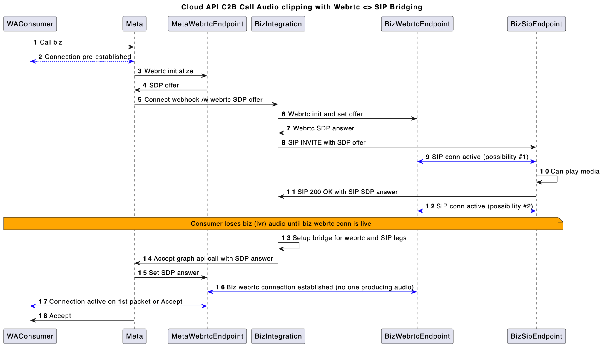
Suggested solution: a WebRTC agent must not send media until the ICE process is almost complete. This is achieved with optimistic acceptance: invoke pre-accept even before sending the SIP INVITE. Per RFC, a UAC must be ready to receive media right after sending the INVITE.
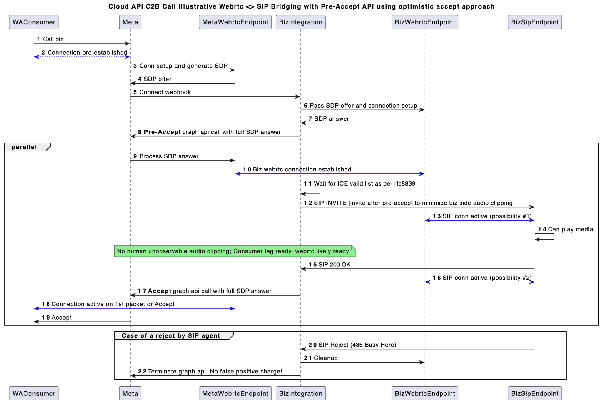
Key points:
- When receiving the connect webhook, initialize the WebRTC agent, prepare the SDP answer and call pre-accept with that SDP answer.
- Wait for the ICE process to complete the valid candidate lists before sending media.
- If the SIP UA rejects the call instead of sending a
200 OK, call the terminate API. - If the consumer connection is ready before the SIP one, the consumer may hear a few milliseconds of silence, which is better than losing the initial business audio.
Other alternatives: force the SIP UA not to play audio until it receives the WebRTC ACK, until it detects the connected state, buffer SIP media packets and send them once the WebRTC connection is established, or insert silence in the IVR before the actual audio.
Integration patterns
Single app vs. multiple apps
To integrate the Calling API you need to call Graph API endpoints and process Webhooks from Meta, which requires you to have an app. Almost always, you should already have an app used for messaging, and you can reuse it for calling.
In this setup, the Webhook Callback URI is the same for both message and call webhooks, but the payload can be used to distinguish between the two categories. You can forward calling-specific webhooks to a calls-related component from your main webhook logic.
Reusing the same app offers:
- Reduced operational overhead (app review, ongoing maintenance).
- Simplified footprint on Meta.
- Equality between the app used for Embedded Signup and the one used for invoking Graph APIs and receiving webhooks.
- No impact to existing functionality; you only need to ensure the webhook server gracefully handles calls-related webhooks.
Having separate apps is still supported.
Integrating using a third-party calling provider
In this scenario, you use a third-party (3p) calling provider internally, and that provider is not visible to Meta. The pattern is similar to any other SaaS service. This architecture can optionally be extended to integrate with the SIP infrastructure on your side.
Warning: our terms disallow use of PSTN on any leg of the WhatsApp call in the overall call flow. Even if you bridge the WA call into the SIP world, you must ensure it stays exclusively on VoIP and never touches the PSTN. A SIP trunk by itself is not disallowed, because technically it can be used without any PSTN at all.
Guidelines for media path integration
The WhatsApp Business Calling VoIP stack is designed to be compatible with WebRTC, but Meta restricts the supported functionalities.
Mandatory requirements (if unmet, the call fails during signaling or media packet decoding):
- Use only the supported codecs.
- For Opus, set the media clock rate to 48 kHz.
- For Opus, use a
ptimeof 20 ms. - Audio must use a single SSRC. The Meta relay server overwrites the SSRC of all business audio packets to a fixed SSRC before they reach the WA client. WA clients handle only one audio source from their peers. Using multiple SSRCs causes undefined behavior: severe media corruption, audio glitches, and likely total media failure.
- Set the DTMF clock rate to 8 kHz.
Recommendations (for high call quality and reliability):
- ICE process: Meta’s VoIP stack is ICE-LITE; it is recommended that the Solution Partner’s stack is ICE-FULL (RFC 5245 §2.7). The partner’s stack should initiate the ICE process by sending STUN connectivity checks, assume the ICE CONTROLLING role (Meta assumes CONTROLLED), use regular nomination instead of aggressive (RFC 5245 §8.1.1.2), wait for ICE to complete before nominating the candidate and starting DTLS, and not switch the candidate mid-call.
- DTLS: use ECDH keys for the DTLS certificates to prevent packet fragmentation. The Solution Partner should act as a DTLS client (RFC 6347 §4.2).
- Media: WhatsApp may not always send the first RTP media packet. Your media server’s egress should not wait for WhatsApp’s media ingress; if it does, there is a risk of deadlock where each side waits for the other.
- Audio clipping: see the audio clipping section above.
Integration examples
Meta documents integration examples with common VoIP platforms. These guides are for information purposes only, with no support or warranties of any kind from Meta or any vendor; there are many ways to integrate, and the guides explain just one way exclusively for illustrative purposes.
Asterisk using SIP
Integration of the Calling API using SIP signaling with Asterisk, an open-source PBX.
- User-initiated calls: the WhatsApp user dials the business number; the call is received by Asterisk and routed through an IVR that asks for an extension registered on the same server; the call is connected to that extension.
- Business-initiated calls: the agent registers with Asterisk using SIP credentials; dials the
b2c-sipextension, the IVR asks for the WhatsApp number to call, and the call is connected to the user. - The WA → Asterisk leg uses SDES for media key exchange and Opus as codec. The Asterisk → SIP UA leg uses SDES and Opus or G.711.
Key troubleshooting — not receiving ACK from Meta or business audio stops around 30s:
If Meta sends a SIP INVITE, your server responds 200 OK, but you never receive the ACK and the SIP server terminates the dialog on ACK timeout (typically 32s), the most likely cause is incorrect Record-Route headers in your 200 OK. The 200 OK must not modify the Record-Route headers included in Meta’s original INVITE (you can add new ones, but not modify the existing). The solution is rewrite_contact=no on the WhatsApp endpoint in pjsip.conf, and ensure your 200 OK has as the last 2 headers:
Record-Route: <sip:wa.meta.vc;transport=tls;lr>
Record-Route: <sip:onevc-sip-proxy.fbinfra.net:8191;transport=tls;lr>
FreeSWITCH using SIP
Integration with FreeSWITCH using SIP signaling. Same flow structure as Asterisk (IVR for extensions and for B2C calls via b2c-sip). The WA → FreeSWITCH leg uses SDES with Opus; the FreeSWITCH → SIP UA leg uses SDES with Opus or G.711.
Key points: FreeSWITCH listens on 5081 for TLS; the wa-biz-api-dialplan.xml dialplan verifies the request comes from wa.meta.vc and uses check_acl with Meta’s allowlisted IPs; a 1-second silence stream is added to establish the media path and avoid audio clipping.
FreeSWITCH using Graph API with Janus
Integration using Cloud API signaling (Graph APIs + Webhooks) with FreeSWITCH and Janus, a general-purpose WebRTC server.
- An integration module sits between WA and Janus and translates Cloud API Signaling messages to Janus SIP plugin messages and vice versa.
- Janus converts WA media (WebRTC, DTLS key exchange) to the media negotiated with FreeSWITCH (SDES).
- Business-initiated calls: the SIP INVITE reaches Janus on extension
1000, is converted to a Graph API request with the INVITE SDP as offer; when the user accepts, the SIP INVITE is accepted passing the SDP answer from the connect webhook. - User-initiated calls: the webhook receives the incoming call with the SDP offer; the Janus SIP plugin sends an INVITE to FreeSWITCH (destination
c2b-sip); on receiving the200 OK, an accept request is sent to Meta with the answer SDP.
Asterisk using Graph API with RtpEngine
Integration using Cloud API signaling with Asterisk and RtpEngine, a proxy for relaying, manipulating and controlling RTP streams. RtpEngine acts as a media proxy between WA (WebRTC, DTLS) and Asterisk (SDES).
The integration module translates Cloud API Signaling to SIP for Asterisk, uses RtpEngine’s ng control protocol for media bridging, and connects via reserved extension 1000. To initiate a call: Asterisk sends a SIP INVITE to extension 1000 with a custom header carrying the WA number; the INVITE SDP is sent to RtpEngine, which returns a new SDP; that SDP is used in the Graph API request to initiate the call.
Asterisk with built-in WebRTC using Graph API
Similar to Asterisk + RtpEngine, but using Asterisk’s built-in WebRTC support (no RtpEngine required). In the extension 1000 configuration, webrtc=yes is a shortcut for: use_avpf=yes, media_encryption=dtls, dtls_verify=fingerprint, dtls_setup=actpass, ice_support=yes, media_use_received_transport=yes, rtcp_mux=yes.
Pricing model
Warning: All user-initiated calls are free.
Overview
Businesses are charged for calls based on:
- Duration of the call (calculated in six-second pulses).
- Country code of the phone number being called.
- Volume tier (based on minutes called within the calendar month) using the same tiering accrual as messaging.
Note: Our systems count fractional pulses as one pulse. For example, a 56-second call (9.33 pulses) would be counted as 10 pulses.
For calls that cross pricing tiers (for example from the 0 - 50,000 tier to the 50,001 - 250,000 tier), the entire call is priced at the lower rate (that is, the rate of the higher volume tier).
A valid payment method is required to place calls.
Note: Call permission request messages are subject to per-messaging pricing.
Rate cards and volume tiers
These rate cards represent the current rates and volume tiers for the WhatsApp Business Calling API, effective April 1, 2026, based on WhatsApp Business account timezone.
| Currency | Rates |
|---|---|
| USD | USD rates |
| AED | AED rates |
| ARS | ARS rates |
| AUD | AUD rates |
| CLP | CLP rates |
| COP | COP rates |
| EUR | EUR rates |
| GBP | GBP rates |
| IDR | IDR rates |
| INR | INR rates |
| MXN | MXN rates |
| MYR | MYR rates |
| PEN | PEN rates |
| SAR | SAR rates |
| SGD | SGD rates |
Updates to rate cards
The following tables show future updates to the rates. See our rate cards above for current rates.
Rates effective July 1, 2026 across 16 currencies:
| Currency | Launched in 2026? | Rates (CSV) | Rates (PDF) |
|---|---|---|---|
| USD | Already available | USD rates | USD rates |
| AED | Yes – April 1, 2026 | AED rates | AED rates |
| ARS | Yes – April 1, 2026 | ARS rates | ARS rates |
| AUD | Already available | AUD rates | AUD rates |
| BRL | Yes – July 1, 2026 | BRL rates | BRL rates |
| CLP | Yes – April 1, 2026 | CLP rates | CLP rates |
| COP | Yes – April 1, 2026 | COP rates | COP rates |
| EUR | Already available | EUR rates | EUR rates |
| GBP | Already available | GBP rates | GBP rates |
| IDR | Already available | IDR rates | IDR rates |
| INR | Already available | INR rates | INR rates |
| MXN | Yes – January 1, 2026 | MXN rates | MXN rates |
| MYR | Yes – April 1, 2026 | MYR rates | MYR rates |
| PEN | Yes – April 1, 2026 | PEN rates | PEN rates |
| SAR | Yes – April 1, 2026 | SAR rates | SAR rates |
| SGD | Yes – April 1, 2026 | SGD rates | SGD rates |
Previous updates
- Effective April 1, 2026 – 8 new billing currencies introduced: AED (United Arab Emirates), ARS (Argentina), CLP (Chile), COP (Colombia), MYR (Malaysia), PEN (Peru), SAR (Saudi Arabia), SGD (Singapore).
- Effective January 1, 2026 – MXN (Mexico) rates introduced.
How calling changes the 24 hour customer service window
Currently, when a WhatsApp user messages you, a 24-hour timer called a customer service window begins, or refreshes.
When you are within the window, your business can send any type of message to the WhatsApp user, which is otherwise not allowed.
With the introduction of the Calling API, the customer service window now also starts or refreshes for calls:
- When a WhatsApp user calls you, regardless of if you accept the call or not.
- When a WhatsApp user accepts your call.
Get cost and call analytics
Get call analytics for your WhatsApp Business account (WABA), providing useful information like cost, counts of completed calls, and average call duration. Learn more about call analytics.
Endpoint: GET /calls/{v}/{did}/analytics
Response (200):
{
  "call_analytics": {
    "data": [
      {
        "data_points": [
          {
            "start": 1676361600,
            "end": 1676448000,
            "cost": 10,
            "count": 10,
            "average_duration": 1
          }
        ]
      }
    ]
  },
  "id": "114525791557199"
}
Filters:
| Field | Type | Description |
|---|---|---|
start / end | Integer | Date range (Unix timestamp). Required. |
granularity | Enum | HALF_HOUR, DAILY or MONTHLY. Required. |
country_codes | String[] | Countries to include (two-letter codes). Optional. |
phone_numbers | String[] | Business phone numbers to include. Optional. |
metric_types | Enum | COST, COUNT, AVERAGE_DURATION. Optional. |
directions | Enum | USER_INITIATED, BUSINESS_INITIATED. Optional. |
dimensions | Enum | DIRECTION, COUNTRY, PHONE. Optional. |
SIP specifications
Session Initiation Protocol (SIP) is a signaling protocol used for initiating, maintaining, modifying, and terminating real-time communication sessions between two or more endpoints. The Calling API supports using SIP as the signaling protocol instead of the Graph API endpoints.
Caution: when SIP is enabled on a business phone number, you cannot use the calling-related Graph API endpoints. By default, calling-related webhooks are not sent, but you can enable webhook delivery for SIP calls with webhook_delivery to receive call lifecycle events.
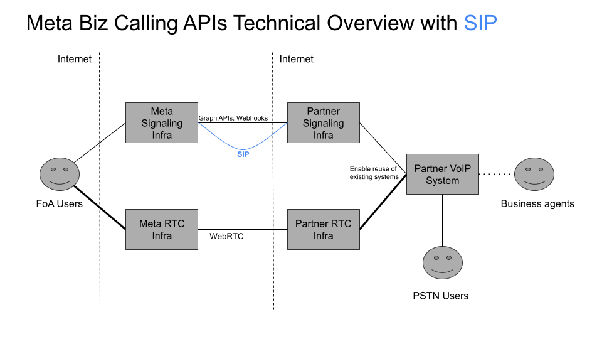
Prerequisites:
- The app must be enabled for calls (Beta contract signature).
- The app must have messaging permissions on the business phone number. Test by sending and receiving messages with the Graph API messaging endpoints, then use the same app to configure your SIP server for calling. Verify with the Health Status API.
- The app mode must be “Live” (not “In development”).
- A standards-compliant third-party SIP server that supports TLS transport and digest authentication.
Security:
- TLS transport is mandatory for SIP. Meta presents a valid server cert whose subject name covers the SIP domain
wa.meta.vc. Your SIP server must do the same: Meta validates your cert and that its subject name covers the SIP domain configured on the business phone number. - Meta does not support mutual TLS (mTLS): when Meta acts as a TLS client, your TLS server must not request a client certificate. If you do, Meta presents a client cert whose subject references a random dynamic host that will not pass validation.
- Meta adds
transport=TLSto the request URI as part of its SIP requests to your server. - For business-initiated calls, the SIP INVITE from your server will be challenged with digest auth.
- For user-initiated calls, it is strongly recommended to challenge Meta’s SIP INVITE with digest auth.
Configure SIP settings
Endpoint: POST /calls/{v}/{did}/settings
Request:
{
  "calling": {
    "status": "ENABLED",
    "sip": {
      "status": "ENABLED",
      "webhook_delivery": "ENABLED",
      "servers": [
        {
          "hostname": "sip.example.com",
          "port": 5061,
          "request_uri_user_params": {
            "tgrp": "meta-wa",
            "trunk-context": "byoc.example.com"
          }
        }
      ]
    }
  }
}
Response (200):
{
  "success": true
}
sip fields:
| Field | Description |
|---|---|
status | ENABLED or DISABLED (default). When enabled, the number uses SIP exclusively for signaling and does not work with the Graph APIs. When disabled, SIP servers are not reset; when re-enabled, previously configured servers are applied. You can configure status and servers in the same request. |
webhook_delivery | ENABLED or DISABLED (default). When ENABLED, SIP call lifecycle webhooks (call_created and terminate) are sent to your configured webhook endpoint. Only applicable when status is ENABLED. |
servers | SIP server routing configuration. Each phone number can have only one SIP server configured (the field is an array for forward compatibility). Meta previously allowed multiple apps each with their own SIP server, but that no longer works because Meta terminates the call after receiving BYE from any of the SIP servers. The associated app is extracted from the access token used. To delete a server, pass an empty array. At least one SIP server of any app must exist when status is ENABLED. |
servers[].hostname | Hostname of the SIP server. Requests must use TLS. |
servers[].port | Port of the SIP server that accepts requests. Must use TLS. Default 5061. |
servers[].request_uri_user_params | Optional parameters included in the user portion of the request URI of Meta’s SIP INVITE (e.g. trunk groups, RFC 4904). Key or value limited to 128 characters. E.g. sip:+1234567890;tgrp=wacall;trunk-context=byoc.example.com@sip.example.com |
| “status”: “ENABLED”, | |
| “sip”: { | |
| “status”: “ENABLED”, | |
| “servers”: [ | |
| { | |
| “hostname”: “sip.example.com”, | |
| “port”: 5061, | |
| “request_uri_user_params”: { | |
| “tgrp”: “meta-wa”, | |
| “trunk-context”: “byoc.example.com” | |
| } | |
| } | |
| ] | |
| } | |
| } | |
| } |
**Response (200):**

```json
{
  "success": true
}
sip fields:
| Field | Description |
|---|---|
sip.status | ENABLED or DISABLED (default). When disabled, SIP servers are not reset; when re-enabled, previously configured servers are applied. |
sip.servers | Max one SIP server per app. To remove a server, send this field as an empty array. |
sip.server.hostname | Hostname of the SIP server to receive SIP requests over TLS. |
sip.server.port | SIP server port over TLS. Default 5061. |
sip.server.request_uri_user_params | Parameters Meta includes in the user section of the request URI (e.g. trunk groups, RFC 4904). Key or value limited to 128 characters. |
curl example:
curl --request POST \
  --url 'https://channels.chattigo.com/bsp-cloud-chattigo-isv/calls/v21.0/{did}/settings' \
  --header 'Authorization: Bearer <token>' \
  --header 'Content-Type: application/json' \
  --data '{
    "calling": {
      "status": "ENABLED",
      "sip": {
        "status": "ENABLED",
        "servers": [{
          "hostname": "{SIP_SERVER_URL}"
        }]
      }
    }
  }'
Get SIP settings
The SIP user password is only included if the include_sip_credentials=true query param is specified.
Endpoint: GET /calls/{v}/{did}/settings?include_sip_credentials=true
Response (200):
{
  "calling": {
    "status": "ENABLED",
    "call_icon_visibility": "DEFAULT",
    "callback_permission_status": "ENABLED",
    "sip": {
      "status": "ENABLED",
      "servers": [
        {
          "app_id": "<APP_ID_THAT_CONFIGURED_THIS_SIP_SERVER>",
          "hostname": "sip.example.com",
          "sip_user_password": "{SIP_USER_PASSWORD}"
        }
      ]
    }
  }
}
Note: the sip_user_password field is only included if the include_sip_credentials=true query param is added. The GET response includes app_id, which identifies the app that configured that SIP server.
Reset the SIP password
To make Meta generate a new SIP password:
- Disable SIP and delete the SIP server.
- Re-enable SIP and add the server.
- Fetch the SIP configuration with
include_sip_credentials=trueto see the new password.
# Disable and delete
curl --request POST \
  --url 'https://channels.chattigo.com/bsp-cloud-chattigo-isv/calls/v21.0/{did}/settings' \
  --header 'Authorization: Bearer <token>' \
  --header 'Content-Type: application/json' \
  --data '{
    "calling": {
      "status": "DISABLED",
      "sip": {
        "status": "DISABLED",
        "servers": []
      }
    }
  }'
# Enable and add
curl --request POST \
--url 'https://channels.chattigo.com/bsp-cloud-chattigo-isv/calls/v21.0/{did}/settings' \
--header 'Authorization: Bearer <token>' \
--header 'Content-Type: application/json' \
--data '{
"calling": {
"status": "ENABLED",
"sip": {
"status": "ENABLED",
"servers": [{"hostname": "sip.example.com"}]
}
}
}'Custom SIP headers
The following custom SIP headers are common to both business-initiated and user-initiated calls:
| Header | Metadata | Description |
|---|---|---|
x-wa-meta-call-duration | Optional; String | Call duration in seconds. Present on Meta’s SIP BYE requests for termination of an established call. |
x-wa-meta-wacid | Optional; String | The WhatsApp call ID. Present on Meta’s SIP INVITE (user-initiated call) and BYE requests. |
x-wa-meta-user-id | Optional; String | The WhatsApp user’s BSUID. Present on Meta’s SIP messages (INVITE, 200 OK, BYE) when the business has BSUIDs enabled. |
x-wa-meta-parent-user-id | Optional; String | The user’s parent BSUID, if parent BSUIDs are enabled for the business. |
x-wa-meta-username | Optional; String | The user’s username, if they have adopted one. |
The following headers are specific to user-initiated calls:
| Header | Metadata | Description |
|---|---|---|
x-wa-meta-cta-payload | Optional; String | Present when the user initiates a call from a call button with a business-specified payload. |
x-wa-meta-deeplink-payload | Optional; String | Present when the user initiates a call from a call deeplink with a business-specified payload. |
SIP call webhooks
SIP calls now support webhooks, providing call lifecycle events to your webhook endpoint when you enable webhook delivery on a SIP-enabled number.
| Webhook | Description |
|---|---|
| Call created | Sent when a SIP call is attempted. |
| Call terminate | Sent when the call ends for any reason. |
These webhooks apply to both business-initiated and user-initiated SIP calls.
Prerequisites:
- Subscribe to the
callswebhook field. - Enable SIP on the business phone number.
- Enable webhook delivery for SIP calls with
webhook_delivery: ENABLEDin the SIP settings (disabled by default).
Note on call ID mapping: the id field in the webhook payload contains the WhatsApp Call ID (WACID). This WACID can be correlated with the x-wa-meta-wacid custom SIP header in SIP signaling messages to map webhook events to specific SIP call sessions.
Note: SIP webhooks do not include SDP information, because the SIP server handles the media. They are informational only, to keep your messaging system informed about call lifecycle events.
Call created webhook (call_created):
{
  "object": "whatsapp_business_account",
  "entry": [
    {
      "id": "<WHATSAPP_BUSINESS_ACCOUNT_ID>",
      "changes": [
        {
          "value": {
            "messaging_product": "whatsapp",
            "metadata": {
              "display_phone_number": "16315553601",
              "phone_number_id": "<PHONE_NUMBER_ID>"
            },
            "contacts": [
              {
                "profile": {
                  "name": "<CALLEE_NAME>",
                  "username": "<USERNAME>"
                },
                "wa_id": "16315553602",
                "user_id": "<BSUID>",
                "parent_user_id": "<PARENT_BSUID>"
              }
            ],
            "calls": [
              {
                "id": "wacid.ABGGFjFVU2AfAgo6V-Hc5eCgK5Gh",
                "to": "16315553601",
                "to_user_id": "<BSUID>",
                "to_parent_user_id": "<PARENT_BSUID>",
                "from": "16315553602",
                "event": "call_created",
                "timestamp": "1671644824",
                "direction": "BUSINESS_INITIATED"
              }
            ]
          },
          "field": "calls"
        }
      ]
    }
  ]
}
The calls field descriptions are the same as those in the Call Connect webhook, except that SIP call webhooks do not include the session object, since call signaling is handled via SIP rather than WebRTC.
Digest authentication on business-initiated calls
The first SIP INVITE to Meta fails with 407 Proxy Authentication required. You must send a second INVITE with the proper authorization header.
Requirements:
- The username attribute of the authorization field must match the username of the
Fromheader (the normalized business phone number). - The domain of the
Fromheader must match the SIP server configured on the business phone number. - The user’s call permission approval is required.
- The SDP offer must support ICE, DTLS-SRTP and OPUS (essentially WebRTC media).
Validate the TLS certificate
Meta’s SIP server validates the TLS certificate of the configured hostname. A certificate whose hostname does not match (e.g. using a provider hostname different from the one configured on the number) causes a hostname mismatch validation error and no SIP traffic will be received from Meta.
To avoid the issue, configure the SIP server hostname so it matches the presented certificate, and use request_uri_user_params (e.g. tgrp and trunk-context) when the provider requires them for routing traffic.
Sample SIP requests
INVITE WebRTC Media
INVITE sip:17015558857@meta-voip.example.com SIP/2.0
Via: SIP/2.0/TLS [2803:6080:e888:51aa:d4a4:c5e0:300:0]:33819;branch=z9hG4bKPjNvs.IZBnUa1W4l8oHPpk3SUMmcx3MMcE;alias
Max-Forwards: 70
From: "12195550714" <sip:12195550714@wa.meta.vc>;tag=bbf1ad6e-79bb-4d9c-8a2c-094168a10bea
To: <sip:17015558857@meta-voip.example.com>
Contact: <sip:12195550714@wa.meta.vc;transport=tls;ob>;isfocus
Call-ID: outgoing:wacid.HBgLMTIxOTU1NTA3MTQVAgASGCAzODg1NTE5NEU1NTBEMTc1RTFFQUY5NjNCQ0FCRkEzRhwYCzE3MDE1NTU4ODU3FQIAAA==
CSeq: 2824 INVITE
X-FB-External-Domain: wa.meta.vc
Allow: INVITE, ACK, BYE, CANCEL, NOTIFY, OPTIONS
User-Agent: Facebook SipGateway
Content-Type: application/sdp

v=0
o=- 1741113186367 2 IN IP4 127.0.0.1
s=-
t=0 0
a=group:BUNDLE audio
m=audio 3480 UDP/TLS/RTP/SAVPF 111 126
a=ice-lite
a=setup:actpass
a=mid:audio
a=sendrecv
a=rtcp-mux
a=rtpmap:111 opus/48000/2
a=rtpmap:126 telephone-event/8000
a=ptime:20
a=maxptime:20
a=ssrc:849255537 cname:WhatsAppAudioStream1
INVITE with digest authentication (user-initiated calls)
First INVITE:
INVITE sip:+12145551869@meta-voip.example.com;transport=tls SIP/2.0
From: "12195550714" <sip:+12195550714@wa.meta.vc>;tag=ece2da15-39e7-4983-ac65-e312f325d94a
To: <sip:+12145551869@meta-voip.example.com>
Call-ID: outgoing:wacid.HBgLMTIxOTU1NTA3MTQVAgASGCA2MUI2QUY0MDRCMTUyOTM4QkE5ODEwN0ZGQTAwODkxORwYCzEyMTQ1NTUxODY5FQIAFRoA
CSeq: 9989 INVITE
Content-Type: application/sdp

v=0
o=- 1750716867913 2 IN IP4 127.0.0.1
s=-
t=0 0
m=audio 3480 RTP/SAVP 111 126
a=sendrecv
a=rtcp-mux
a=rtpmap:111 opus/48000/2
a=rtpmap:126 telephone-event/8000
a=ptime:20
a=maxptime:20
a=ssrc:215879358 cname:WhatsAppAudioStream1
SIP server 407 response:
SIP/2.0 407 Proxy Authentication required
CSeq: 9989 INVITE
Call-ID: outgoing:wacid.HBgLMTIxOTU1NTA3MTQVAgASGCA2MUI2QUY0MDRCMTUyOTM4QkE5ODEwN0ZGQTAwODkxORwYCzEyMTQ1NTUxODY5FQIAFRoA
From: "12195550714" <sip:+12195550714@wa.meta.vc>;tag=ece2da15-39e7-4983-ac65-e312f325d94a
To: <sip:+12145551869@meta-voip.example.com>;tag=45065608_c3356d0b_16001fd8-76d2-45f0-bb35-e0441d6dc4a2
Proxy-Authenticate: Digest realm="sip.twilio.com",nonce="eyOam_8-l5FVugxsyxFRjnlxq9vy1TjQIMB3mBfJuAvB5gV4",opaque="4a6a068be2ca2032a57912b9a2a6adf7",qop="auth"
Content-Length: 0
Second INVITE with authorization:
INVITE sip:+12145551869@meta-voip.example.com;transport=tls SIP/2.0
From: "12195550714" <sip:+12195550714@wa.meta.vc>;tag=ece2da15-39e7-4983-ac65-e312f325d94a
To: <sip:+12145551869@meta-voip.example.com>
Call-ID: outgoing:wacid.HBgLMTIxOTU1NTA3MTQVAgASGCA2MUI2QUY0MDRCMTUyOTM4QkE5ODEwN0ZGQTAwODkxORwYCzEyMTQ1NTUxODY5FQIAFRoA
CSeq: 9990 INVITE
Proxy-Authorization: Digest username="12145551869", realm="sip.twilio.com", nonce="eyOam_8-l5FVugxsyxFRjnlxq9vy1TjQIMB3mBfJuAvB5gV4", uri="sip:+12145551869@meta-voip.example.com", response="b28ed6b8bf1418e3c6eca05ef8c7a0b1", cnonce="TY2SszvYCKitUCBlVLpGiPKMQfmBbj", opaque="4a6a068be2ca2032a57912b9a2a6adf7", qop=auth, nc=00000001
Content-Type: application/sdp

v=0
o=- 1750716867913 2 IN IP4 127.0.0.1
s=-
t=0 0
m=audio 3480 RTP/SAVP 111 126
a=sendrecv
a=rtcp-mux
a=rtpmap:111 opus/48000/2
a=rtpmap:126 telephone-event/8000
a=ptime:20
a=maxptime:20
a=ssrc:215879358 cname:WhatsAppAudioStream1
SIP server OK:
SIP/2.0 200 OK
CSeq: 9990 INVITE
Call-ID: outgoing:wacid.HBgLMTIxOTU1NTA3MTQVAgASGCA2MUI2QUY0MDRCMTUyOTM4QkE5ODEwN0ZGQTAwODkxORwYCzEyMTQ1NTUxODY5FQIAFRoA
From: "12195550714" <sip:+12195550714@wa.meta.vc>;tag=ece2da15-39e7-4983-ac65-e312f325d94a
To: <sip:+12145551869@meta-voip.example.com>;tag=29360930_c3356d0b_4933dc58-f035-4597-b075-04b19e552329
Content-Type: application/sdp
Content-Length: 444

v=0
o=root 477560318 477560318 IN IP4 172.18.156.61
s=Twilio Media Gateway
t=0 0
m=audio 12710 RTP/SAVP 111 126
a=rtpmap:111 opus/48000/2
a=rtpmap:126 telephone-event/8000
a=ptime:20
a=maxptime:20
a=sendrecv
Troubleshooting
| Problem | Cause | Solution |
|---|---|---|
| No SIP traffic received from Meta | TLS certificate with hostname mismatch | Configure the SIP server hostname to match the presented certificate. |
INVITE fails with 403 | The INVITE SIP server does not match the one configured for the number | Check the hostname configured on the phone number. |
407 Proxy Authentication required | Missing digest authentication | Send a second INVITE with the correct authorization header. |
SDES (SRTP key exchange)
You can configure the SRTP key exchange protocol as SDES instead of the default DTLS.
Enable/disable SDES
Endpoint: POST /calls/{v}/{did}/settings
Request:
{
  "calling": {
    "status": "ENABLED",
    "call_icon_visibility": "DEFAULT",
    "srtp_key_exchange_protocol": "SDES"
  }
}
Response (200):
{
  "success": true
}
Notes:
srtp_key_exchange_protocolis optional, with DTLS as default. Set it toSDESto use SDES.- SDES is only allowed for numbers with SIP enabled.
- Meta still expects the business side to send the initial SRTP packet, both for user-initiated and business-initiated calls.
Get the key exchange protocol
Endpoint: GET /calls/{v}/{did}/settings
The srtp_key_exchange_protocol field is absent if the partner did not configure it explicitly.
SDP overview and sample structures
Session Description Protocol (SDP) is a text-based format that describes multimedia session characteristics (voice and video) in real-time communication applications: media type, codecs, protocols and parameters. In WebRTC, SDP is used to negotiate media parameters between sender and receiver.
Sample SDP structures for business-initiated calls
SDP offer
v=0
o=- 3626166318745852955 2 IN IP4 127.0.0.1
s=-
t=0 0
a=group:BUNDLE 0
a=extmap-allow-mixed
a=msid-semantic: WMS d8b26053-4474-4eb7-b3c3-c93d6c8c9b2e
m=audio 9 UDP/TLS/RTP/SAVPF 111 63 9 0 8 110 126
c=IN IP4 0.0.0.0
a=rtcp:9 IN IP4 0.0.0.0
a=ice-ufrag:4g1c
a=ice-pwd:qY/Bb+jQzg5ICn6X4fhJQetk
a=ice-options:trickle
a=fingerprint:sha-256 35:47:24:24:9F:93:C4:3E:DB:37:7F:BB:ED:F8:20:B5:AD:AC:DC:35:C2:7D:67:EE:6C:35:54:DF:A6:00:5C:4A
a=setup:actpass
a=mid:0
a=extmap:1 urn:ietf:params:rtp-hdrext:ssrc-audio-level
a=extmap:2 http://www.webrtc.org/experiments/rtp-hdrext/abs-send-time
a=extmap:3 http://www.ietf.org/id/draft-holmer-rmcat-transport-wide-cc-extensions-01
a=extmap:4 urn:ietf:params:rtp-hdrext:sdes:mid
a=sendrecv
a=rtcp-mux
a=rtpmap:111 opus/48000/2
a=rtcp-fb:111 transport-cc
a=fmtp:111 minptime=10;useinbandfec=1
a=rtpmap:63 red/48000/2
a=fmtp:63 111/111
a=rtpmap:9 G722/8000
a=rtpmap:0 PCMU/8000
a=rtpmap:8 PCMA/8000
a=rtpmap:110 telephone-event/48000
a=rtpmap:126 telephone-event/8000
SDP answer (from Meta)
v=0
o=- 741807839102053725 2 IN IP4 127.0.0.1
s=-
t=0 0
a=group:BUNDLE 0
a=extmap-allow-mixed
a=msid-semantic: WMS 798a9670-c0d6-47a8-925e-5f082ef4d8a0
a=ice-lite
m=audio 3482 UDP/TLS/RTP/SAVPF 111 9 0 8 110 126
c=IN IP4 31.13.65.130
a=rtcp:9 IN IP4 0.0.0.0
a=candidate:2754936280 1 udp 2113937151 31.13.65.130 3482 typ host generation 0 network-cost 50 ufrag JHqAXFH4HcAY/8
a=ice-ufrag:JHqAXFH4HcAY/8
a=ice-pwd:dNNMmR8wUcGezvfBZOO0Qgcwl2m86GP/
a=ice-options:trickle
a=fingerprint:sha-256 9C:97:5C:4C:A9:BE:9E:2F:06:94:F5:BB:38:2C:A1:29:B5:69:B8:FA:94:10:56:1D:0B:5D:80:28:C1:FD:F0:F6
a=setup:active
a=mid:0
a=sendrecv
a=rtcp-mux
a=rtpmap:111 opus/48000/2
a=rtpmap:9 G722/8000
a=rtpmap:0 PCMU/8000
a=rtpmap:8 PCMA/8000
a=rtpmap:110 telephone-event/48000
a=rtpmap:126 telephone-event/8000
Sample SDP structures for user-initiated calls
SDP offer (from Meta)
v=0
o=- 7602563789789945080 2 IN IP4 127.0.0.1
s=-
t=0 0
a=group:BUNDLE audio
a=msid-semantic: WMS 6932bc1c-db1a-4abe-b437-0c4168be8a13
a=ice-lite
m=audio 40012 UDP/TLS/RTP/SAVPF 111 126
c=IN IP4 31.13.65.60
a=rtcp:9 IN IP4 0.0.0.0
a=candidate:1972637320 1 udp 2113937151 31.13.65.60 40012 typ host generation 0 network-cost 50 ufrag 6k2qP1R6kBfI/2
a=ice-ufrag:6k2qP1R6kBfI/2
a=ice-pwd:UApvJw3NcwFRDvIMKdM0vWCdlXah25E9
a=fingerprint:sha-256 1B:B6:6B:40:A5:0B:8C:75:0D:8C:CB:90:2F:99:74:1E:26:45:AE:AF:45:C1:51:60:8F:73:C9:2D:10:6D:8A:88
a=setup:actpass
a=mid:audio
a=sendrecv
a=rtcp-mux
a=rtpmap:111 opus/48000/2
a=rtpmap:126 telephone-event/8000
SDP answer
v=0
o=- 2822644248144643933 2 IN IP4 127.0.0.1
s=-
t=0 0
a=group:BUNDLE audio
a=msid-semantic: WMS eb909cf0-87f0-4358-a4c9-7861680d9431
m=audio 9 UDP/TLS/RTP/SAVPF 111 126
c=IN IP4 0.0.0.0
a=rtcp:9 IN IP4 0.0.0.0
a=ice-ufrag:X1ho
a=ice-pwd:7fJSbV2N5qWiA5QiDKwK3vuh
a=fingerprint:sha-256 2E:35:9F:21:9E:63:72:E5:42:74:76:2D:B3:70:F7:CB:24:14:9B:14:52:71:05:48:DA:4D:67:31:09:58:2A:ED
a=setup:active
a=mid:audio
a=sendrecv
a=rtcp-mux
a=rtpmap:111 opus/48000/2
a=rtpmap:126 telephone-event/8000
Sample cURL requests
Note: the did in these requests corresponds to the business phone number ID.
Initiate a new call
curl -i -X POST 'https://channels.chattigo.com/bsp-cloud-chattigo-isv/calls/v21.0/{did}/signaling' \
  -H 'Content-Type: application/json' \
  -H 'Authorization: Bearer <token>' \
  -d '{
     "messaging_product": "whatsapp",
     "to": "14085550000",
     "recipient": "US.13491208655302741918",
     "action": "connect",
     "session": {
         "sdp": "v=0\no=- 7669997803033704573 2 IN IP4 127.0.0.1\ns=-\nt=0 0\na=group:BUNDLE 0\na=msid-semantic: WMS 3c28addc-03b7-4170-b5cd-535bfe767e75\nm=audio 9 UDP/TLS/RTP/SAVPF 111 63 9 0 8 110 126\nc=IN IP4 0.0.0.0\na=rtcp:9 IN IP4 0.0.0.0\na=ice-ufrag:6O0H\na=ice-pwd:TYCbtfOrBMPpfxFRgSbYnuTI\na=ice-options:trickle\na=fingerprint:sha-256 9F:45:2C:A8:C3:C0:CC:9B:59:4F:D1:02:56:52:FA:36:00:BE:C0:79:87:B3:D9:9C:3E:BF:60:98:25:B4:26:FC\na=setup:active\na=mid:0\na=sendrecv\na=rtcp-mux\na=rtpmap:111 opus/48000/2\na=fmtp:111 minptime=10;useinbandfec=1\na=rtpmap:63 red/48000/2\na=rtpmap:9 G722/8000\na=rtpmap:0 PCMU/8000\na=rtpmap:8 PCMA/8000\na=rtpmap:126 telephone-event/8000\n",
         "sdp_type": "offer"
     }
}'
Terminate a call
curl -i -X POST 'https://channels.chattigo.com/bsp-cloud-chattigo-isv/calls/v21.0/{did}/signaling' \
  -H 'Content-Type: application/json' \
  -H 'Authorization: Bearer <token>' \
  -d '{
     "messaging_product": "whatsapp",
     "action": "terminate",
     "call_id": "wacid.HBgLMTY1MDMxMzM5NzQVAgARGCBFRjNEODRBM0Q3NDZDM0Q0QzI4MzAwQjZBRkZGODM3NhwYCzEyMjQ1NTU0NDg5FQIAAA"
}'
Accept a call
curl -i -X POST 'https://channels.chattigo.com/bsp-cloud-chattigo-isv/calls/v21.0/{did}/signaling' \
  -H 'Content-Type: application/json' \
  -H 'Authorization: Bearer <token>' \
  -d '{
     "messaging_product": "whatsapp",
     "to": "14085550000",
     "action": "accept",
     "call_id": "wacid.HBgLMTY1MDMxMzM5NzQVAgASGCA5ODkyMDk2RkM2NUM1QTYwRkM4NjFDQzk0NkQwNDBCRRwYCzEyMjQ1NTU0NDg5FQIAAA==",
     "session": {
         "sdp": "v=0\no=- 7669997803033704573 2 IN IP4 127.0.0.1\ns=-\nt=0 0\na=group:BUNDLE 0\na=msid-semantic: WMS 3c28addc-03b7-4170-b5cd-535bfe767e75\nm=audio 9 UDP/TLS/RTP/SAVPF 111 63 9 0 8 110 126\nc=IN IP4 0.0.0.0\na=rtcp:9 IN IP4 0.0.0.0\na=ice-ufrag:6O0H\na=ice-pwd:TYCbtfOrBMPpfxFRgSbYnuTI\na=ice-options:trickle\na=fingerprint:sha-256 9F:45:2C:A8:C3:C0:CC:9B:59:4F:D1:02:56:52:FA:36:00:BE:C0:79:87:B3:D9:9C:3E:BF:60:98:25:B4:26:FC\na=setup:active\na=mid:0\na=sendrecv\na=rtcp-mux\na=rtpmap:111 opus/48000/2\na=fmtp:111 minptime=10;useinbandfec=1\na=rtpmap:63 red/48000/2\na=rtpmap:9 G722/8000\na=rtpmap:0 PCMU/8000\na=rtpmap:8 PCMA/8000\na=rtpmap:126 telephone-event/8000\n",
         "sdp_type": "answer"
     }
}'
Call logs
The Call Logs tab in WhatsApp Manager provides a detailed, self-service view of call events to aid in troubleshooting.
To view them: WhatsApp Manager > Account tools > Phone numbers > select the phone number.
| Field | Description |
|---|---|
| Timestamp | Timestamp of when the call occurred. |
| Call Direction | Outbound (Business-initiated) or Inbound (User-initiated). |
| Signaling | Signaling protocol used (SIP, GRAPH_API). |
| Call ID | WhatsApp call identifier. Provide this ID when requesting support. |
| Request ID | Identifier for the request that initiated the call. |
| Call Details | Additional information containing a log of events during the lifecycle of the call. |
SIP errors
Business-initiated calls
| SIP status and message | Description | Possible solutions |
|---|---|---|
400 — Asset not found, invalid business phone number | The number in the From header of the INVITE is invalid and does not correspond to a registered account. | Check the number and resend the INVITE with the correct From. |
403 — SIP server foo.com from INVITE does not match any SIP server configured for phone number id [ID] | Your INVITE’s From has foo.com, but there is no SIP server with that hostname configured on the number. | Ensure the SIP configuration matches the domain used in From. The configured hostname must match the From domain, or be a subdomain of it. |
403 — No Approved Call Permission Found | There is no WhatsApp user with that number, the user did not accept the terms, or there is no permission from the user to call the business. | Double-check the number and obtain user permission. |
403 — The app [APP_ID] configured for SIP server example.com is not authorized for phone number id [ID] | The app mapped to the SIP server does not have whatsapp_business_messaging permission on the number. | Check you use the right app with permissions on the number. You may need to delete and re-add the SIP server with the correct app. |
403 — Business Initiated Connected Call Per Day Limit Hit | Limit of business-initiated calls in 24h reached. | Adjust your calling rate per the limits. |
404 — Not found | SIP INVITEs using IP in the request URI are not allowed. | Use the correct request URI. |
407 — Proxy Authentication Required | Meta mandates digest authentication for your SIP INVITEs. | Resend the INVITE with the digest response. |
408 — RTP Timeout | The client terminated the call due to not receiving media for a long time. | See media issues. |
480 — Temporarily Unavailable | The WhatsApp user is not reachable or did not answer. | Try again later. Unanswered calls impact permissions. |
486 — User declined the call | The user rejected the call. | Try again later. Rejected calls impact permissions. |
487 — Request Terminated | The business canceled its SIP INVITE with SIP CANCEL. | Expected when you cancel the INVITE before Meta’s response. |
503 — Service Unavailable | Generic internal error. | Retry after some time or consult Meta support. |
Media issues
| Issue | Description | Possible solutions |
|---|---|---|
| Call disconnects after 20 seconds | At the start of the call, if no media flows from business to user for 20 seconds, the client disconnects. | Check your media server is initiating the media session and sending packets; check your firewall; capture network traffic (pcap) for support. |
| No audio and call disconnects after 30 seconds | After the call is connected, if there is no media from business to user for 30 seconds, the client disconnects. | Send at least RTCP packets even in silence or when waiting for user input (e.g. IVR); check why your server stops sending media; capture network traffic (pcap). |
Audio clipping issue and solution
Audio clipping is explained in detail in Integration best practices. In addition to optimistic acceptance (pre-accept), the alternative solutions include:
- Use SDES: configure SDES on your business number instead of DTLS. A common reason for delayed media leg setup is DTLS handshake completion. With SDES you can send SRTP directly after sending Meta your SDP.
- Delayed audio playback: instruct the SIP UA to wait for an ACK from BizWebrtcEndpoint before playing audio.
- Connection state-based delay: direct the SIP UA to wait until the WebRTC connection state is
connectedbefore playing audio. - Buffered media packets: buffer SIP media packets and send them only after the WebRTC connection is established.
- Silence insertion: insert a brief period of silence into the IVR audio before the actual content.
- Pre-accept: invoke the pre-accept even before sending the SIP INVITE (optimistic acceptance).
Support
For WhatsApp Business Calling API support, choose the WaBiz: Calling API topic when opening a Direct Support ticket.
Calling API App Review Guidelines
Reviewers reference the permissions reference as the official page. Use this guide as complementary to the permissions reference page, but treat the permissions reference page as the official source when in doubt.
This page provides details to improve your chances of a successful App Review specifically for WhatsApp Business Calling API features.
For the WhatsApp Business management permission
You should clearly show that your app can enable and disable Calling API features by displaying whether the Call Button icon is visible.
Share a video of you enabling and disabling the Call Button icon for the WhatsApp Business account either via cURL request, or via settings within your application UI.
Demonstrate this by enabling and disabling Calling API features, not simply toggling Call Button icon visibility.
- Learn how to enable and disable Calling API features via API
- Learn how to enable and disable Calling API features in WhatsApp Manager
Example
- Display a chat thread between your business and a WhatsApp user that does not have the Call Button icon.
- Use your app to enable Calling API features on the business phone number, which displays the Call Button icon.
- Return to the same chat thread and display that the Call Button icon is visible.
For the WhatsApp Business messaging permission
You should clearly demonstrate your application can support either of the following use cases:
Use case 1: Place a business-initiated call
Share a video that shows your application placing a business-initiated call. Then display a user accepting the call on a WhatsApp mobile client.
Use case 2: Receive a user-initiated call
Share a video that shows a user placing a call to your business phone number. Then show your application receiving the incoming call.
Show either:
- The incoming call in the WhatsApp client application UI.
- The calling webhook that the WhatsApp platform delivers to your app.
FAQs
Product FAQ
Will calls show up in the insights page on Meta WhatsApp Manager UI?
Call insights will be available in both WhatsApp Manager and the analytics API.
Are International calls supported like WhatsApp consumer to consumer calls?
Yes.
What are the countries supported for calling?
See Calling Availability for more info.
Can I use toll-free numbers for calling?
Yes, as long as the country code for the toll-free number is in the list of supported countries. See 1-800 and toll free numbers for details on how to register toll-free numbers on Cloud API.
What is the max number of concurrent calls that a single Cloud API account phone number can receive?
Max concurrent calls is 1000. When the rate limit is exceeded, the caller (the WhatsApp user) will get a generic message saying call cannot be placed. No message is played and there is no webhook. This limit is expected to increase and hence chances of this happening are low. Note that the rate limits for messaging API and template creation/update API are separate and unrelated to calling limits.
What is the role of Solution Partner vs. end business in overall call flow?
- The Solution Partner offers additional services such as contact center, voice recording, and transcription on top of the raw audio stream provided by Cloud API Calling.
- The webhook is sent to apps subscribed for the new
callssubscription field. In typical cases, a Solution Partner uses their own app and receives the call webhook followed by call establishment. - How the end-business participates in the call is determined by the Solution Partner.
Is the voice infrastructure/API for WhatsApp the same for Facebook Messenger?
WhatsApp Calling API is the first public voice API by Meta. Meta may reuse the same API and integration model for other Meta products when and if they offer voice solutions.
What is the maximum call duration supported?
There is no call duration limit.
Is SIP supported?
Yes, see Configure and use call signalling via session initiation protocol (SIP).
Can I send/receive text/media messages while a call is in progress?
Yes. The Messages API can be used while a call is in progress.
Does Meta offer services such as voice recording, transcript, voice-mail?
No.
Can I add metadata (for example, context) as part of accepting the call?
Yes. See biz_opaque_callback_data field in the main API spec. Also the existing conversation state provides important context to the business human agent. The call routing subsystem should directly connect the call from WhatsApp consumer to the right agent on the business side. This gives the best customer experience and avoids going through standard IVR.
How can I raise awareness of the calling feature to WhatsApp users?
- Send messages with voice call buttons. See send interactive message and send template message sections for details.
- Send a message with a voice call button automatically when a WhatsApp consumer opens a chat with the business account for the first time. See welcome message for more details.
- Link to a WhatsApp call from a website using deeplinks.
Is it possible for an AI (for example voicebot) to have a conversation with a customer directly via a WhatsApp call?
Yes. Meta only provides the raw media stream and how it is processed is entirely flexible. Many businesses use automated voicebots including AI bots to answer calls from WhatsApp users. Many AI products in the market offer RTC / Speech APIs and some even have native WebRTC support. The integration approach is similar to integrating WhatsApp Business Calling with call centers for IVR or human agents.
See WhatsApp Business Solution Terms for restrictions in AI use cases.
Why is pre-accepting user initiated call starting the timer on WhatsApp user side?
Likely because media is being sent before the call is accepted. WhatsApp clients treat a call as accepted by peer if they receive a media packet or an accept signal whichever comes first.
If the timing of media start cannot be controlled, directly accept the call and do not use pre-accept. The pre-accept is meant to start media connection establishment early but it does require controlling the timing of media transmission.
Is there a status page to track overall health of Calling APIs and view any outages or service incidents?
Yes. See Cloud API Calling on Meta status page and incident history.
Getting started FAQ
What is the minimum Graph API version for the Calling API?
The minimum Graph API version is v17.0. See here for general version history.
Can I use the same user access token for messaging, for calling?
Yes. Whatever works for messaging should work for calling in general.
Does the WABA need to have an attached credit line for using Calling APIs?
Yes, a credit line attached to the WABA is required in order to use the Calling API.
Does the WABA need to be a verified business for calling?
No. Business verification is not a requirement for calling, nor is it required for messaging.
How does usage of Calling APIs affect my rate limits?
Calling API usage does not count towards messaging rate limits at the moment. The only limit enforced for calling right now is the 1000 concurrent calls limit, but this may change in near future.
Is it possible for a WhatsApp Business account to be connected to Provider A for Chat and to Provider B for Voice (that is, two different apps subscribed to the same WhatsApp business Webhook account/phone)?
Yes, it is possible for two partners to operate a single WhatsApp Business API phone number with two separate solutions, like chat and calling.
See Multi-Solution Conversations for more details.
Another option is for the voice provider used by another Solution Partner. In this case a Meta app or being a tech provider on Meta is not needed. This architecture is depicted in detail in the section Integrating using a third party voice provider.
Graph API call signaling FAQ
Does Meta provide any STUN/TURN servers or WebRTC infra for use by Solution Partner?
No.
Meta uses ICE-lite and the Meta SDP offer always has a single ipv4 and ipv6 address per data stream component. The SDP answer should follow the same format.
As such it is not mandatory to use STUN/TURN to determine the ICE candidates.
Does Meta recommend any STUN/TURN servers or WebRTC infra for use by Solution Partner?
Meta doesn’t have recommendations. Here are a few ideas in case they are helpful.
- Check for any existing VoIP related technology and if so, consult that team. WebRTC relies on SRTP/SRTCP for actual media which is the VoIP media standard.
- Using STUN/TURN works well in an end user setup with a browser from a personal device. If the integration with the Meta voice APIs involves terminating the media directly on an end user device, the STUN/TURN, and so on, happen directly on that user device. But often, the media does terminate in a partner’s own infra so services like IVR can be offered. In such cases, the Solution Partner infra may have its own ways to allocate an IP and port for VoIP connections, for example using VIP behind a load-balancer, and so on.
What ICE role should the ICE agent on the business side take?
Always take the CONTROLLING role as the Meta side ICE agent uses ICE-lite (RFC 8445). Starting with the CONTROLLED role may cause the ICE process to stall and timeout. Even if it does work, it will take more time due to multiple round-trips needed to resolve role conflicts.
Can more ICE candidates be added as part of signaling in offer + answer (for example using ICE Trickle)?
Short answer is yes. Cloud API uses ICE-lite (RFC 8445) and always assumes the controlled role in ICE. Hence there is no need to send updated candidates to Meta. The ICE Agent can initiate connectivity checks from addresses not included in the SDP and the Meta ICE agent will consider unknown address as a valid candidate, as long as STUN message integrity passes.
What is the recommendation on how to determine the ICE candidate?
Meta has global infra presence and Meta will choose the media relay on Meta infra that is closest to the WhatsApp user involved in the call.
On the Solution Partner side, the media server/host (aka targeting) can be chosen based on many parameters including the IP Meta chooses, the country of consumer phone number, and the business phone number. The selection of media server location is an important factor in optimizing the media latency between Solution Partner IP and Meta IP which in turn contributes to higher call quality. At the minimum, the Solution Partner call/media hosting location should be close to the country of the WhatsApp user as determined from the country code of the user’s phone number.
Any targeting implementation on the Solution Partner side should optimize for the candidates IPs on the Meta SDPs and not on the source of signaling endpoints.
Is there an API to send a provisional response equivalent to SIP 180 Ringing?
If not, when does the caller’s device start ringing?
Caller (the WhatsApp Consumer app) would already be ringing by the time the webhook is received. There is no need for provisional responses.
How are the calls secured?
Cloud API uses SRTP for the encryption of media streams (RTP/SAVPF) and the actual SRTP key exchange is initially performed end-to-end with DTLS-SRTP.
Can Meta send the call webhooks to a different endpoint based on the caller’s geographical location or other factors such as network latency?
The webhook URL is configurable. HTTPS is used, so standard load balancing and targeting techniques can be applied to reroute accordingly. A different (aka override or alternate) webhook URL can also be configured per WhatsApp Business account and per business phone number. The webhook is only used for signaling and Meta servers calling the webhook server are located in US. Select the location of the media endpoint based on the country code of the WhatsApp consumer (available on the webhooks) or the ice candidate IPs on SDP sent by Meta. See the above FAQ questions “What is the recommendation on how to determine the ICE candidate?” and “How to reduce media latency of the calls?”.
What are the Meta IP addresses that will call the Webhook or SIP or Media servers in order to allowlist them in a firewall?
Refer to the WhatsApp Webhooks documentation on this topic. When collapsing the list of IPv4 addresses the result is around 23 prefixes. See below for an example command and output that was run as of December 11, 2024.
$ src % whois -h whois.radb.net — '-i origin AS32934' | grep ^route | awk '{print $2}' | grep -iv ':' | cidrmerge
31.13.24.0/21
31.13.64.0/18
45.64.40.0/22
57.141.0.0/21
57.141.8.0/22
57.141.12.0/23
57.144.0.0/14
66.220.144.0/20
69.63.176.0/20
69.171.224.0/19
74.119.76.0/22
102.132.96.0/20
103.4.96.0/22
129.134.0.0/16
147.75.208.0/20
157.240.0.0/16
163.70.128.0/17
163.77.128.0/17
173.252.64.0/18
179.60.192.0/22
185.60.216.0/22
185.89.216.0/22
204.15.20.0/22
Is it possible to reduce the Meta IP addresses that will call webhook servers at-least for dev-test purposes?
No. But see the above FAQ which deduced about 23 IPv4 prefixes to completely cover all Meta address space for v4.
What is the retry policy for calling related webhooks?
Do not assume anything in this regard. The webhook server should determine stale webhooks based on timestamp value and avoid calling Graph APIs to further process them. Existing messaging related webhooks are retried for up to 7 days.
Calling related webhooks will likely have a shorter retry policy but stale webhooks may still be delivered as that may be useful information to a business to know that some consumers tried to reach them.
Does Meta guarantee exactly one delivery for webhooks?
No. Be prepared to handle duplicate webhooks.
Due to the distributed nature of Meta’s architecture, exactly-once delivery cannot be guaranteed for any webhooks including even messaging related webhooks. Following are some known scenarios where duplicates can occur today.
- The Meta HTTPS request to the webhook server timed out after ~20s. In this case, the server thinks it successfully handled a webhook request but from Meta’s side, it failed due to timeout. Meta retries sending this webhook, which then appears as a duplicate.
- If the phone number has more than 1 app subscribed to the calls field and Meta dispatches webhooks to app1 and app2 in that order. If app2 fails, Meta will retry the whole dispatch so app1 will receive a duplicate webhook. Meta is in the process of fixing this.
- Failure recovery on Meta queueing infrastructure may result in duplicate webhook sends.
- There could be other reasons that are currently unknown.
Do you guarantee ordering of webhooks for a given call?
No. Ordering is not guaranteed due to the distributed nature of Meta’s architecture and retries.
For example the terminate webhook can arrive before the connect webhook if the WhatsApp user hangs up the call immediately after initiating the call. Following are other known examples.
The connect webhook is attempted which fails with timeout after ~20s. The ’terminate webhook’ is sent next. The retry of connect webhook happens after the ’terminate webhook’. In case of timeout, the webhook server thinks there is no failure but this is seen as failure that warrants a retry.
Can I configure multiple webhook servers for calling and have a notion of primary and secondary for high availability?
Similar to messaging, multiple subscriptions with distinct apps associated with distinct callback URLs can be configured. Meta will dispatch all calling webhooks to all configured callback URLs. All URLs are treated as equal and there is no notion of primary/secondary.
Can I configure different URLs for messaging and calling related webhooks?
Yes, this can be done by having 2 different Meta apps - one for messaging and one for calling.
Subscribe the messaging app only to message related webhook subscription fields and the calling app to the calling related subscription fields. The callback URL can be overridden for each of these apps at WABA or phone number level to have different URL override for messages and calls.
However a single app can also subscribe to both messages and calls Webhook subscription fields. In this setup, the callback URI is the same for both messages and calls related webhooks but the webhook payload can be used to distinguish between the two categories of webhooks.
In general, using a single app is recommended.
Can you share sample curl request for interacting with APIs?
Please view the Sample CURL request section in the API reference.
How should the SDP params be serialized with carriage returns and a new line?
The session param requires the SDP to be set as a string per the RFC-8866 specification which requires CRLF to be used to end a record. Sdp param itself is a string so it should not be further serialized. The legacy connection param however required the RFC-8866 compliant SDP string to be within a JSON structure and hence required further serialization.
In short, use \r\n for the session->SDP param. Do not use the legacy connection->WebRTC->SDP param.
How do I fix error ‘No fingerprint found in SDP’?
The SDP should have an a=fingerprint line when using DTLS as the SRTP key exchange protocol. Make sure to add that line or configure the business phone number to use SDES instead. See all the possible Signaling and media possible configurations.
WebRTC and media FAQ
Is the peer to peer connection from Meta to Solution Partner or end business?
Typically it is the Solution Partner but depending on the product offering and architecture it could be end business.
If it is the end business, the Solution Partner would need to programmatically interact with them to obtain the ICE candidates included in the Graph API call to accept the incoming call.
What happens if the media stops flowing from one end due to connection issues?
A simple example would be if the terminate call endpoint fails but the business side stops sending media.
This will lead to lack of RTCP packets which helps detect inactive WebRTC agent and the call will disconnect followed by a terminate webhook.
Is the codec always opus/48000?
G.711 (PCMA and PCMU) is also supported. For opus, the RTP clock rate is set at 48000 in SDP as per RFC 7587. WhatsApp mobile apps only support opus natively, so Meta media infra transcodes opus to other codecs if needed.
What else is supported in terms of codecs?
Audio codecs supported: OPUS, PCMA, PCMU (aka G.711).
Is DTMF supported?
Yes. See the DTMF section for details. Most SIP implementations should support processing DTMF coming through the RTP data stream (reference).
How many streams are supported in the SDP?
Only one stream is supported in the Offer/Answer SDP.
How many tracks are supported in each SDP stream?
Only one audio track is supported in the SDP stream.
For a consumer to business call, can WhatsApp consumer apps work with an SDP offer generated by a business agent’s browser?
In this case, the WebRTC agent within the browser should generate an SDP answer, not an offer.
This SDP answer should be supplied back to Meta using the accept call endpoint. Meta cannot work with any other SDP offer than the one it generated and supplied on the webhook.
What certificate algorithm is recommended for DTLS?
ECDSA certificates are recommended as they lead to faster cert generation and shorter DTLS handshakes due to lack of fragmentation.
Who would initiate the calls after accepting the user-initiated call - The Solution Partner or Meta?
The Solution Partner should initiate the ICE connectivity checks as soon as the Solution Partner decides to accept the call.
This can be done even before calling the accept API but the ICE process will only converge after Meta processes the SDP answer, due to the need for DTLS certificate fingerprint.
What are the port numbers used by ICE candidates on Meta’s SDP for allowlisting on firewalls?
Port numbers can be any one from 40012, 3482, 3484, 3478, 3480. These are subject to change.
How can I generate the WebRTC Accept SDP?
Consult the documentation of the WebRTC library or tool planned for use.
Processing an SDP offer to generate an SDP answer is the primary functionality of any VoIP technology stack.
How to reduce media latency of the calls?
Meta’s targeting algorithms will choose the Meta relay that receives media from Solution Partner close to the WhatsApp consumer’s location. This media relay is the ice candidate Meta will share in the SDP. Any Solution Partner side targeting should place the Solution Partner media servers in the same region as the consumer. This obviously minimizes latency for calls within the same region, but it will minimize the media packet routes on public internet for international calls.
Is there a process of reconnection if there is a temporary network drop on either end of the media leg?
WhatsApp consumer apps will attempt a reconnect and automatically recover that leg of the call once network connectivity is restored.
For the business leg, relatively more stable network conditions are expected. At this time there is no support to re-handshake or re-negotiate SDPs. In any case, the call can terminate after a certain duration of inactivity, after which a terminate webhook is sent.
How much bandwidth would be required for the call center to support a given number of concurrent calls?
Per call, roughly 40kbps is needed for codec + 20 kbps overhead.
The Opus codec has the ability to dynamically change bandwidth consumed based on network conditions. In general it can offer better audio quality with lower bandwidth consumption, compared to G711 codec.
G711 codec in comparison needs 64 kbps for codec + 20 kbps overhead = 84 kbps per call.
Multiply the above numbers with the expected number of concurrent calls to calculate the cumulative bandwidth required. Example: A 1mbps bandwidth can roughly handle 15 concurrent calls on opus (1000/64) vs. 12 concurrent calls on G711 (1000/84).
To calculate the total data usage, multiply the bandwidth with call duration in seconds. For Opus, it’s a bit more tricky because it has variable bandwidth depending on many factors including available bandwidth estimated using bandwidth estimation, whether local party is talking or silent, and so on. But roughly, a 1 min call on Opus consumes 3.75MB of data vs. the same on G711 takes 4.9MB of data.
Is it possible to handover / transfer a call from one agent to another during an active call session? In essence, a customer is speaking with Agent A and needs to be transferred to Agent B?
Meta doesn’t have any native support.
Meta is unaware of different agents on the business / partner side, so the call transfer is an operation that is doable solely on the partner side. For example, the media flow can be Meta media server to Partner media server to Agent A. When transfer happens, the flow becomes Meta media server to Partner media server to Agent B. So in the both cases, the leg from Meta media server to Partner media server remains constant.
WhatsApp consumer client FAQ
When is the call icon in the chat title bar visible on WhatsApp Consumer apps?
It is visible when all the following conditions are met:
- The business phone number has the calling status set to
ENABLEDin the Call Settings API. - Business phone number
call_icon_visibilityis notHIDE_IN_CHATand notDISABLE_ALL. - The call icon visibility feature is supported in WhatsApp mobile versions 2.24.10.8 and above on Android and iOS.
- Consumer’s WhatsApp version 2.23.14 or above. All consumers are expected to be on this version or above.
View the Call Settings API to learn more.
Why is the call icon in the WhatsApp Consumer app not reflecting the current call settings?
After call configuration is updated, WhatsApp users may take up to 7 days to reflect that configuration although most users refresh much sooner. An immediate refresh in WhatsApp can be forced by entering the chat window with the business and opening the chat info page. Regardless of WhatsApp client behavior, the semantics of settings are still honored on the server side.
Troubleshoot the call icon not showing using the following steps:
- Navigate to the chat window for the business and click on the business name or number in the chat title bar. This opens the Business Info screen and forces the app to refresh calling state for the business.
- Navigate out of the chat window for the business and re-enter.
- If the expected state is still not visible, kill the WhatsApp app and restart it.
- Make sure to get call settings to double confirm expected call settings.
How long does it take for WhatsApp clients to reflect changes to calling configuration?
It can take up to 7 days although most WhatsApp users should reflect the changes much sooner.
One WhatsApp Business can have chats with any number of 3B+ WhatsApp users. Updates to calling settings sends change notifications to all users that have a chat with this business visible in their WhatsApp Inbox. However notification delivery is best effort so not all users may receive it.
All WhatsApp clients refresh the business information (including calling configuration) every 7 days regardless of getting any change notifications.
In either case (notification driven or 7d refresh), once the local state in WhatsApp client is refreshed, it is reflected in UI only on next enter of the chat screen or chat info screen.
Must I create an allowlist of consumer numbers for calling to work?
No.
Is it possible to limit calling access to specific or individual WhatsApp users instead of all WhatsApp users?
Example: a lead that’s qualified or a customer who is in premium tier.
No. There is no way to control visibility or access of calling on an individual WhatsApp user basis. However the Call Settings API can be used to set call_icon_visibility to DISABLE_ALL which will hide call icons to all WhatsApp users. For qualified WhatsApp users, a message with the call CTA button can be sent so only they can call the business by tapping on the button in the message.
Providing this type of feature would require Meta to store configuration per WhatsApp user which has higher privacy risk. It will also incur higher operational overhead to maintain large lists of allowlisted WhatsApp users on an ongoing basis.
When the call icon is hidden using Call Settings API, is it still possible for consumers to call the business?
Yes.
A user can still call the business from other entry points which are unaffected by the Call Settings API such as:
- Save the business number as a contact and use new call.
- Call logs from Calls tab > Recent.
- Call CTA in messages sent from the business.
- Call bubble in the chat window that appears following any call between user and business.
Hence the recommendation is to treat DISABLE_ALL only as a broad first level filter and ensure webhooks do any additional filtering based on specific business logic.
How will WhatsApp consumers type digits for DTMF?
WhatsApp consumer apps are extended to support a new keypad for business calls.
Learn more about DTMF support in Calling API.
What is the min version of WhatsApp mobile apps that support the voice call button?
- Min app version for Android is 2.24.1.
What is the experience on the WhatsApp consumer side at various points in the call setup flow?
When a WhatsApp consumer calls a business, the local ringback tone starts immediately if the WhatsApp consumer device has internet connectivity.
The call UI shows ‘Calling BUSINESS_NAME’. When Cloud API receives the consumer call request and pre-accepts the call, the call UI changes to ‘Ringing BUSINESS_NAME’. After the accept Graph API call is made, the call UI changes to an active call window showing live timer for the call duration.
Is calling supported for end users from WhatsApp Web or WhatsApp Desktop apps?
No. WhatsApp Web does not support consumer-v-consumer or business calls. Desktop apps support only consumer-v-consumer calls at this point.
Business initiated calling FAQ
What WhatsApp versions and client platforms support the business initiated calling feature?
WhatsApp Client versions 2.24.14.x and later support the call permission requests and business initiated calling feature.
Both WhatsApp Android and iOS platforms support the feature.
How to avoid 138011 in business initiated and user initiated conversation while development, integration, and testing?
User Initiated conversation:
- Send a message to the Cloud API number from the WhatsApp consumer account.
- Send any message apart from the call permission message to the user.
- Send a call permission request to the user.
- Accept the call permission requests on the user’s device.
Business Initiated conversation:
- Send a template message to the user from the business.
- Send the call permission request to the user.
- Accept the call permission requests on the user’s device.
Is there a way to reset the call permission request limits?
A connected call will reset the call permission limits.
What happens if the WhatsApp user has set up Silence Unknown Callers settings?
Business initiated calls bypass ‘Silence Unknown Callers’ settings since the call can only happen after explicit permission provided by the user.
Why is my Call Permission Request message rendered differently?
WhatsApp renders messages on unsupported client app versions differently than supported ones.
After the WhatsApp user updates their client app, it will be rendered correctly.
I received error 138001 after sending a Call Permission Request, what do I do?
Please view error codes in the troubleshooting page.
Does the permission expire after 24 hour connected calls limit is reached? I am seeing error 138012.
Limit on connected calls in 24 hours is a time window based running limit. Reaching that limit does not revoke the permission, permission remains open until the full 7 days for temporary allowed permissions or permanently for always allowed permissions. Call Permissions API provides the exact timestamp when this limit expires and next call can be made.
Think of this as a rate limit for business initiated calls.
Session Initiation Protocol (SIP) FAQ
See SIP Errors for SIP specific errors and possible solutions.
Why is user initiated call getting disconnected immediately after enabling SIP?
Most likely reason for this is certificate validation error: See How to test if you have a valid TLS certificate.
Why am I not getting SIP requests (INVITE, BYE, and so on) when expected?
If you are not getting SIP INVITE following a user initiated call or a SIP BYE following a user initiated call termination, possible reasons include:
- TLS certificate validation error: See How to test if you have a valid TLS certificate.
- SIP is not configured. Fetch calling configuration to make sure SIP is enabled.
- The app that configured the SIP server does not have
whatsapp_business_messagingpermission on the business phone number. Try to send a message using the same business phone number as a way to verify the right permissions are in place. - Network connectivity issue: Your SIP server may not be reachable from Meta on the port you configured for SIP. You can verify basic TCP connectivity to your SIP server by running the following command:
nc -zvw2 -G 2 <your-sip-server> <your-sip-port>Replace <your-sip-server> with your SIP server hostname and <your-sip-port> with the port configured on your SIP server.
Example: Failure (connection timed out)
$ nc -zvw2 -G 2 your-sip-server.example.com 5061
nc: connectx to your-sip-server.example.com port 5061 (tcp) failed: Operation timed out
Example: Success (port is reachable)
$ nc -zvw2 -G 2 your-sip-server.example.com 5061
Connection to your-sip-server.example.com port 5061 [tcp/sip-tls] succeeded!
If the connection times out or is refused, check your firewall rules and ensure that the configured port is open and your SIP server is listening on it. Also verify that Meta’s IP addresses are allowlisted in your firewall.
Why is Meta seemingly not sending an ACK for our 200 OK response?
The most likely reason is your 200 OK is incorrectly modifying Meta’s record-route headers in Meta’s SIP INVITE request.
See Integration patterns Asterisk example for full details and the solution to this problem.
This problem manifests as a user initiated call getting connected, with bidirectional audio flow but user stops hearing business audio around ~33 seconds due to your SIP server timing out the SIP dialog.
Why is our SIP TERMINATE to Meta not hanging up the call on the WhatsApp user side?
Common reason is TLS handshake failure when the SIP server is trying to establish a TLS session with Meta SIP server. Do a network packet capture of SIP traffic or check the SIP server logs to confirm successful TLS handshake.
Why is my SIP server continuously responding with 401 Unauthorized for user initiated calls?
Meta supports SIP digest auth for user initiated calls. When the SIP server responds with 401 Unauthorized (see example flow), Meta SIP server will resend the INVITE with proper Authorization header. Make sure the SIP server is configured with username as the business phone number and password as the Meta generated password for the business phone number.
Alternatively, digest auth can be disabled on the SIP server, although this is NOT recommended from a security best practices point of view.
Why is my SIP server responding with 488 Not Acceptable Here?
Consult the SIP server documentation or vendor. The likely reason is the SIP server does not support WebRTC ICE (Interactive Connectivity Establishment) protocol. To fix this, configure the business phone number to use SDES instead.
Is it required to SIP REGISTER business phone number to Meta SIP server?
No. Do not send REGISTER requests to Meta’s SIP server. Doing so is unnecessary resource consumption on both sides. REGISTER requests will fail with 403 Forbidden error. As such Meta’s SIP server owns only meta.vc domain and the only SIP users in that domain are regular WhatsApp consumer users. The WhatsApp Business Numbers belong to the SIP domain configured using the settings API.
Does Meta support SIP re-INVITEs?
No. Re-INVITES are not supported today. A 500 Internal Server Error is returned from Meta SIP server.
Is SIP calling as good as the Cloud Graph API/webhook option? Any reason to pick one over the other?
Yes, there is functional parity between the two options. The best way to identify the best option is to complete a thorough assessment and select based on needs.
If SIP is used for calling, are webhooks still needed?
SIP for calling only covers call specific events. For messaging or any non-call specific events, webhooks still need to be used.
Does Meta reuse TLS connections for multiple SIP messages within the same call?
Do not rely on TLS connection reuse for Meta initiated SIP requests (mid-dialog messages such as BYE). However, Meta does enforce TLS connection reuse for SIP responses, which are always sent back on the same connection the request arrived on.
Whether a given Meta initiated request reuses an existing TLS connection or opens a new one depends on Meta’s internal routing at that moment. At higher call volumes, TLS connections are more likely to be reused.
Does Meta have a specific, approved list of vendors or SBCs for SIP?
No. Any compatible SIP server.